> ## Documentation Index
> Fetch the complete documentation index at: https://help.notis.ai/llms.txt
> Use this file to discover all available pages before exploring further.
# Automations
> Automations are saved instructions Notis runs on a trigger. The full reference for trigger types, channels, channel accounts, and managing automations from chat or the portal.
PRO+Included with Pro+ and Ultra
Every automation has the same anatomy: a **trigger** decides when it runs, a **prompt** tells Notis what to do, a **channel** decides where Notis replies, and — for channels with several accounts — a **channel account** decides which inbox or workspace to use.
If you've never created an automation, start with the [first-automation walkthrough](/get-started/create-an-automation). This page is the reference for everything you can configure afterwards.
When Notis runs an automation, the conversation context from the moment you saved the prompt is automatically recalled, so it remembers what you were discussing.
## Trigger types
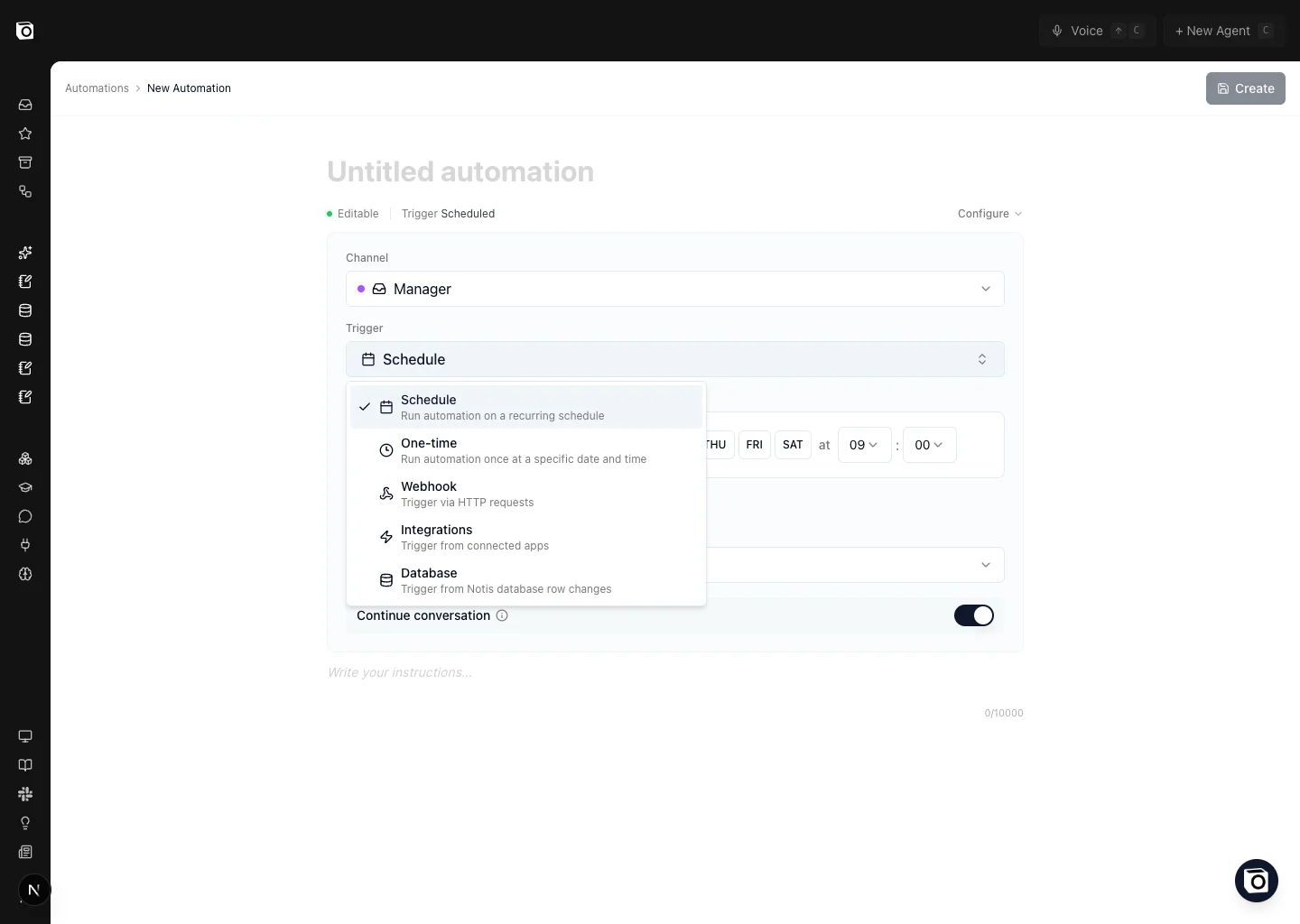
Notis supports five trigger types. You can switch between them in the **Trigger** dropdown of the automation editor without losing your prompt.
### Schedule
Run the automation on a recurring cadence — every weekday at 9 AM, every Monday morning, the first day of the month, and so on. The portal exposes a visual builder so you don't need to learn cron syntax.
> *"Every Friday at 5pm, send me a summary of the tasks I completed this week."*
> *"On the first of every month, generate the monthly newsletter draft from this month's blog posts."*
### One-time
Run the automation **once**, at a specific date and time, then disable itself. Useful for reminders and one-off launches.
> *"On December 13th at 9 AM, send me a final reminder to publish the workshop recap."*
Recurring reminders are a special case — see [Reminders](/tools/reminders) for the chat-first way to manage them.
### Webhook
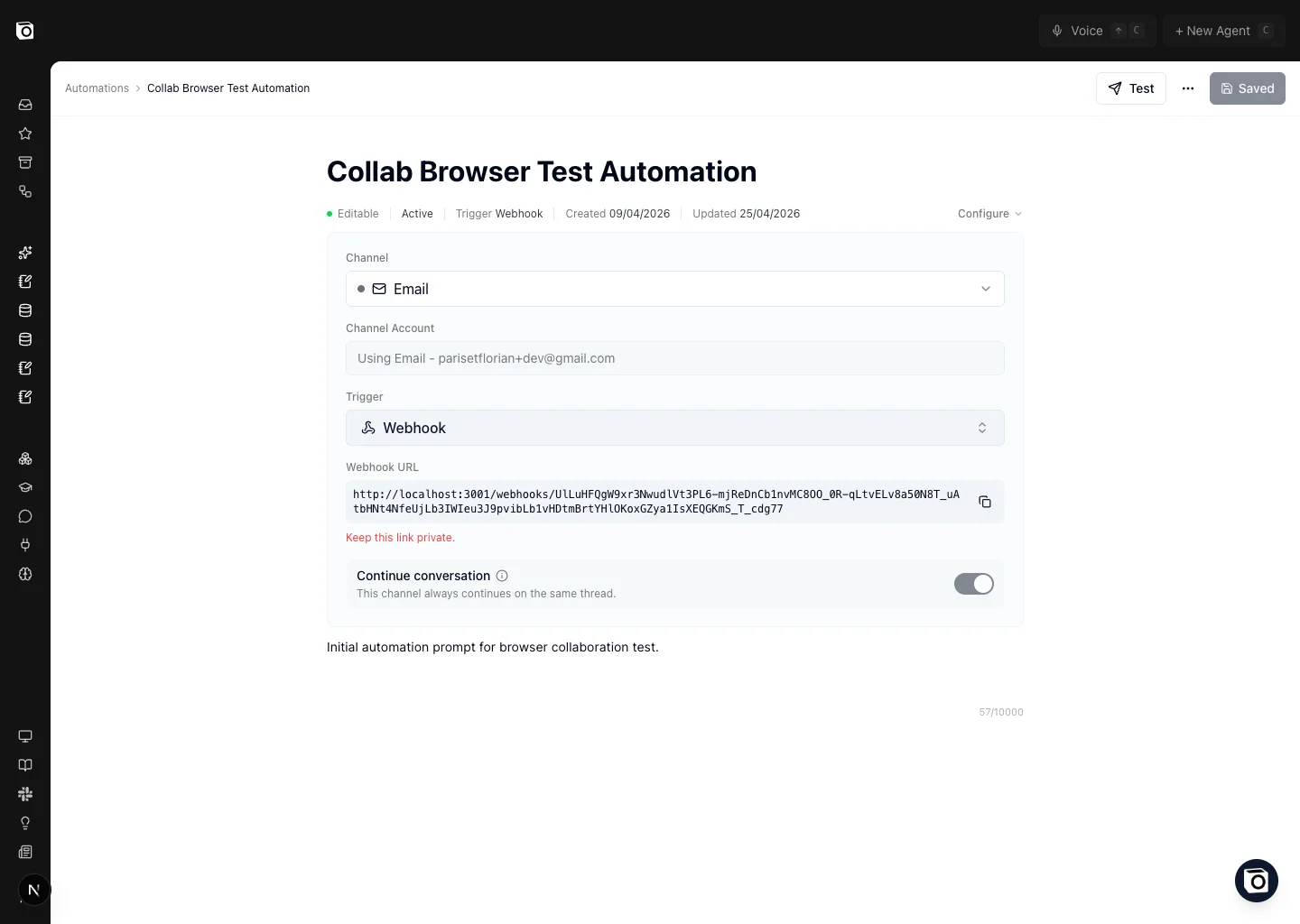
Generate a unique HTTPS URL. Anything that can hit a URL fires the automation: Zapier, Make, n8n, Pipedream, your own backend, a Notion automation, a `curl` from a script. Webhooks are also how you let Notion databases trigger Notis — see [Trigger Notis from Notion](/notion/database-as-agent#trigger-notis-from-notion-via-webhook).
The URL is generated after you save the automation, and a `POST` request body is forwarded to Notis as additional context alongside your prompt.
> *"Create a webhook automation that drafts a follow-up email when my CRM marks a deal as 'Closed Won'."*
Keep webhook URLs strictly private — anyone with the URL can run the automation against your workspace. Webhooks don't return any information; if you need read access to your data, use the Notis API instead.
### Integrations
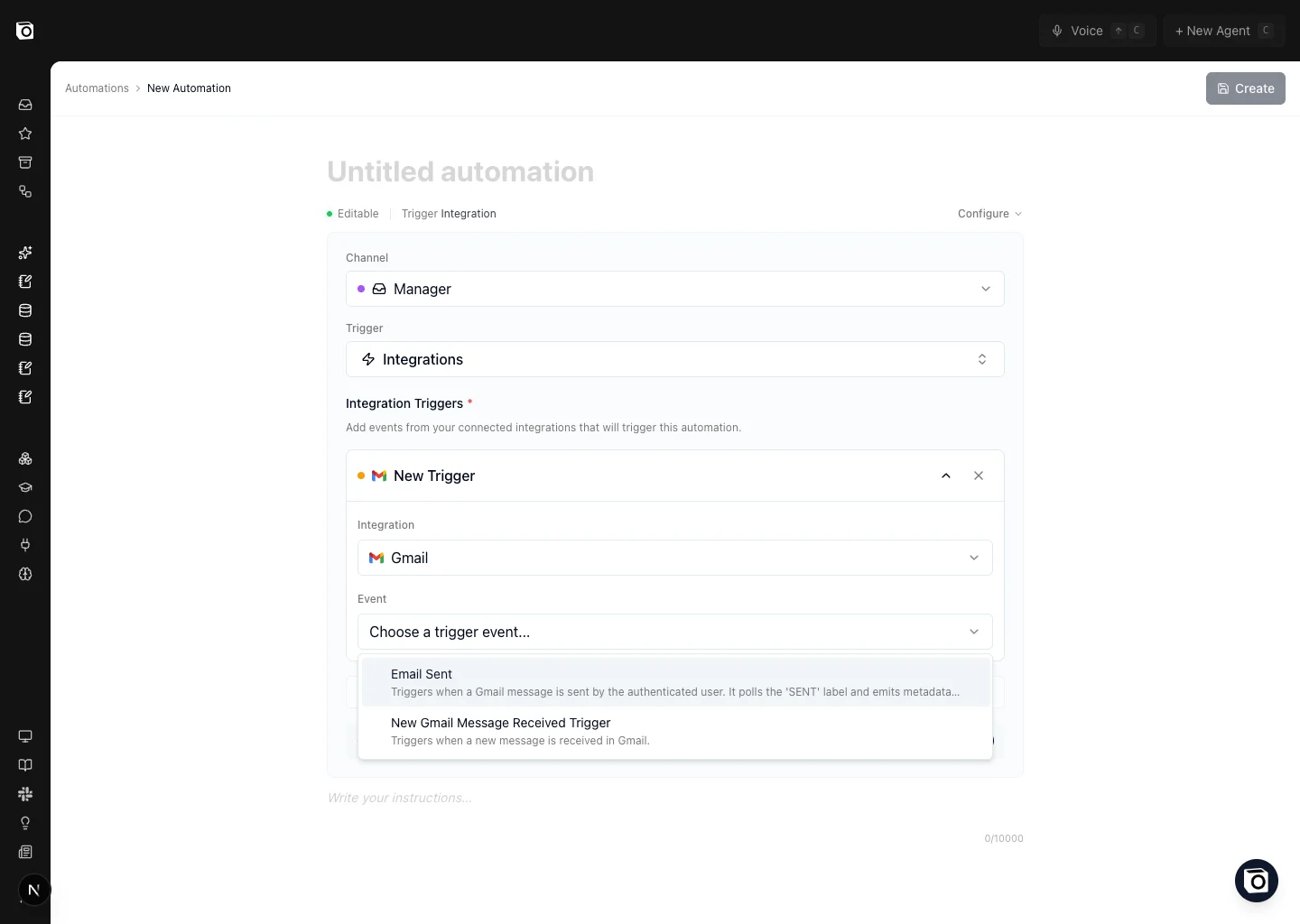
Run the automation when something happens in a connected app — a new Gmail message, a calendar event starting soon, a new HubSpot contact, a GitHub issue assigned to you. Notis subscribes to the integration's event stream and fires the automation when the event matches.
> *"30 minutes before any calendar event, send me a meeting prep brief."*
> *"When a new email arrives in my work Gmail with subject 'Invoice', save it to the Expenses database."*
You can stack multiple integration triggers on a single automation — useful when the same instruction should run for several events.
Connected social accounts powered by PostForMe appear in this same picker. Choose the account first, then run your automation when a post is created, updated, deleted, finishes publishing, or when that account changes. You can mix social events with events from your other connected apps in one automation.
### Database
Run the automation when a row in one of your **Notis databases** changes — created, updated, or both, with optional filters on specific properties. Different from a Notion-side webhook: this is the trigger you use for native Notis databases.
> *"When a new task is added to the 'Inbox' Notis database, triage it and assign a priority."*
## Channels and channel accounts
Every automation runs on a **channel** — Notis needs to know where to talk to you when the trigger fires. The channel selector covers all the supported messaging surfaces:
| Channel | Best for |
| ----------------------- | ----------------------------------------------------------------------------------------------------------------- |
| **Desktop and Web app** | Portal/desktop-first workflows. Each run lands in its own thread under [Manage → Automations](/channels/manager). |
| **Telegram** | Quick mobile pings, voice-friendly briefs. |
| **Messages** (iMessage) | macOS/iPhone users who want briefs in their default messenger. |
| **WhatsApp** | Anything you'd rather get on WhatsApp than email. |
| **Email** | Long-form content you'll want to keep, share, or reply to from a desktop client. |
| **Slack** | Team-facing automations. Replies post in the configured Slack workspace and channel. |
For channels other than the Desktop and Web app, Notis also asks for a **Channel Account**:
* If you only have one account connected for that channel, Notis selects it automatically.
* If you have several (e.g. a personal and a work Gmail, or two Slack workspaces), you pick which one in the **Channel Account** dropdown.
* If no account is connected for the chosen channel, the editor surfaces a warning and points you to [Integrations](/get-started/integrations) to add one.
The Desktop and Web app is the exception — it always lives in the portal/desktop app, so there's nothing to disambiguate.
## Continue conversation
The **Continue conversation** toggle behaves differently depending on whether the channel supports threads.
**Threaded channels** (Desktop/Web app, Slack) — each automation run can live in its own thread, so the toggle is meaningful:
* **On** — every run resumes the previous run's thread, so Notis remembers what was said before. Best for daily standups, ongoing projects, anything where context compounds.
* **Off** — every run opens a brand-new thread. Best for one-shot drafts and fan-out work where prior runs would just add noise.
**Non-threaded channels** (Telegram, iMessage, WhatsApp, Email) — these don't have a separate thread per run. Replies just land in the same ongoing conversation with Notis, so the toggle is locked on and every run carries forward the prior context by default.
## Intelligence
The **Intelligence** selector decides how much horsepower each run gets. Pinning a level is a **Pro+** feature (the same one that unlocks per-channel and per-conversation intelligence/priority); on other plans it stays on Auto. It works exactly like the intelligence picker elsewhere in Notis, including the rough relative cost shown next to each level:
| Level | Model & effort | Relative cost |
| --------------------------------- | ---------------------------------------- | -------------- |
| **Auto** *(default, recommended)* | Notis picks the right level for each run | — |
| **High** | GPT-5.6 Sol · medium effort | \~2× base |
| **Medium** | GPT-5.6 Sol · no reasoning (instant) | base |
| **Low** | GPT-5.6 Luna · xhigh effort | \~2.5× cheaper |
Leave it on **Auto** unless a specific automation needs to be locked to a level — for example forcing **High** on a complex research brief, or **Low** on a simple daily ping you run often and want to keep cheap. The forced level applies to the whole run, including any sub-agents Notis delegates to. Your saved level is kept if your plan changes; while you're not on Pro+ the automation simply runs on **Auto**, and your pinned level resumes when you upgrade again.
**Every automation runs on Economy (flex) priority** — about half the base price, but at a lower (slower) priority than interactive messages. That's a separate axis from Intelligence: the Intelligence selector only changes the model and effort, never the priority. So even on **High**, an automation still gets the flex discount.
You can also set it from chat:
> *"Set my competitor analysis automation to High intelligence."*
> *"Put my daily standup automation back on Auto intelligence."*
## Manage automations from any channel
Once an automation exists, every action lives behind a chat command — no need to open the portal:
> *"List all my automations."*
> *"Edit my Meeting Prep automation to run 15 minutes before instead of 30."*
> *"Run my competitor analysis automation on poke.com."*
> *"Disable my weekly summary automation."*
> *"Delete the social media posting automation."*
> *"What was the status of the last automations that ran?"*
The same goes for creating new ones — Notis can build a webhook or schedule automation directly from a chat brief.
> *"Create a webhook automation that drafts a social media post for today based on the blog post I share."*
## Manage automations in the portal
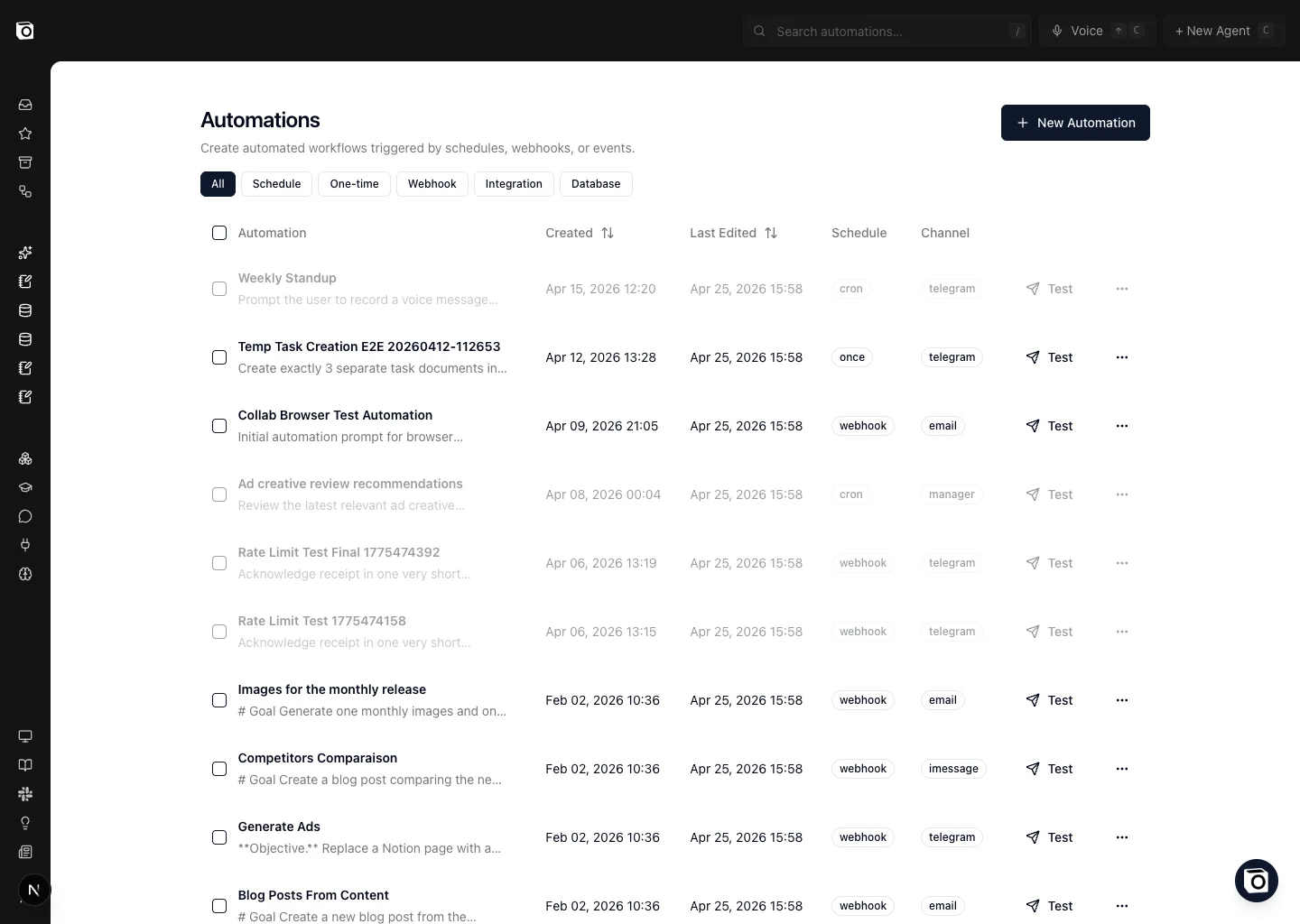
[**app.notis.ai/automations**](https://app.notis.ai/automations) is the visual control plane. You'll find it in the left sidebar under **Manage → Automations**.
From here you can:
* Filter by trigger type (Schedule, One-time, Webhook, Integration, Database)
* Search by name or prompt
* Test, pause/resume, duplicate, or delete an automation in one click
* Open execution logs to see when each run fired and what happened
* Publish an automation as a [team template](/account-and-settings/teams) so teammates can reuse it
* Share an eligible automation with anyone through a link
Click **+ New Automation** (or any row) to open the editor:
The editor is a single page — name at the top, configuration panel in the middle, prompt at the bottom. **Cmd/Ctrl + S** saves at any time, and the **Test** button (top right of an existing automation) fires it immediately so you can iterate without waiting for the real trigger.
## Share an automation with a link
Open a saved automation's **⋯** menu and choose **Share via link**. The recipient can read the prompt, trigger, schedule, and delivery channel before signing in and installing their own copy.
Notis never shares your connected account. The recipient chooses or connects their own account after installation. Ask them to review the new automation in the editor, especially its schedule, channel, and integration connection.
Share links are available for active recurring schedules, webhooks, and supported integration automations. One-time, paused, and database-triggered automations cannot be shared because their timing or database belongs to the original workspace.
The link keeps a snapshot of the automation at the moment it was created. Revoke it and create a new link when you want to distribute an updated version. Revocation stops future installs but does not delete copies that were already installed.
For ongoing team-wide updates, use a [team template](/account-and-settings/teams) instead. A share link gives each recipient an independent copy.
For webhook automations, the URL is generated after the first save and surfaced inline with a copy button:
Automations are particularly powerful when combined with [database and property instructions](/notion/database-instructions). The database tells Notis *how* to handle the data; the automation tells Notis *when* to run.
Browse the [prompt library](https://mindtheflo.notion.site/notis-automations-gallery?v=2cd6f212c58c8183bc1b000cd1a25e7a\&source=copy_link) for ready-to-copy automations — daily briefs, weekly summaries, social media schedulers, expense triage, meeting prep, and more.
## Limits
Notis enforces per-automation rate limits to keep the system fair and stable:
* **Webhooks** — 50 requests per day per webhook
* **Integration triggers** — 50 events per day per trigger
Schedule, One-time, and Database triggers are not subject to these daily limits.
## What's next
* [Create your first automation](/get-started/create-an-automation) — guided walkthrough with a real example
* [Trigger Notis from Notion](/notion/database-as-agent#trigger-notis-from-notion-via-webhook) — the canonical Notion-side webhook setup
* [Turn any database into an AI agent](/notion/database-as-agent) — pair automations with Notion database instructions
* [Reminders](/tools/reminders) — the chat-first wrapper around one-time and recurring scheduled automations
 ### Schedule
Run the automation on a recurring cadence — every weekday at 9 AM, every Monday morning, the first day of the month, and so on. The portal exposes a visual builder so you don't need to learn cron syntax.
> *"Every Friday at 5pm, send me a summary of the tasks I completed this week."*
> *"On the first of every month, generate the monthly newsletter draft from this month's blog posts."*
### One-time
Run the automation **once**, at a specific date and time, then disable itself. Useful for reminders and one-off launches.
> *"On December 13th at 9 AM, send me a final reminder to publish the workshop recap."*
Recurring reminders are a special case — see [Reminders](/tools/reminders) for the chat-first way to manage them.
### Webhook
Generate a unique HTTPS URL. Anything that can hit a URL fires the automation: Zapier, Make, n8n, Pipedream, your own backend, a Notion automation, a `curl` from a script. Webhooks are also how you let Notion databases trigger Notis — see [Trigger Notis from Notion](/notion/database-as-agent#trigger-notis-from-notion-via-webhook).
The URL is generated after you save the automation, and a `POST` request body is forwarded to Notis as additional context alongside your prompt.
> *"Create a webhook automation that drafts a follow-up email when my CRM marks a deal as 'Closed Won'."*
### Schedule
Run the automation on a recurring cadence — every weekday at 9 AM, every Monday morning, the first day of the month, and so on. The portal exposes a visual builder so you don't need to learn cron syntax.
> *"Every Friday at 5pm, send me a summary of the tasks I completed this week."*
> *"On the first of every month, generate the monthly newsletter draft from this month's blog posts."*
### One-time
Run the automation **once**, at a specific date and time, then disable itself. Useful for reminders and one-off launches.
> *"On December 13th at 9 AM, send me a final reminder to publish the workshop recap."*
Recurring reminders are a special case — see [Reminders](/tools/reminders) for the chat-first way to manage them.
### Webhook
Generate a unique HTTPS URL. Anything that can hit a URL fires the automation: Zapier, Make, n8n, Pipedream, your own backend, a Notion automation, a `curl` from a script. Webhooks are also how you let Notion databases trigger Notis — see [Trigger Notis from Notion](/notion/database-as-agent#trigger-notis-from-notion-via-webhook).
The URL is generated after you save the automation, and a `POST` request body is forwarded to Notis as additional context alongside your prompt.
> *"Create a webhook automation that drafts a follow-up email when my CRM marks a deal as 'Closed Won'."*
 ### Database
Run the automation when a row in one of your **Notis databases** changes — created, updated, or both, with optional filters on specific properties. Different from a Notion-side webhook: this is the trigger you use for native Notis databases.
> *"When a new task is added to the 'Inbox' Notis database, triage it and assign a priority."*
## Channels and channel accounts
Every automation runs on a **channel** — Notis needs to know where to talk to you when the trigger fires. The channel selector covers all the supported messaging surfaces:
| Channel | Best for |
| ----------------------- | ----------------------------------------------------------------------------------------------------------------- |
| **Desktop and Web app** | Portal/desktop-first workflows. Each run lands in its own thread under [Manage → Automations](/channels/manager). |
| **Telegram** | Quick mobile pings, voice-friendly briefs. |
| **Messages** (iMessage) | macOS/iPhone users who want briefs in their default messenger. |
| **WhatsApp** | Anything you'd rather get on WhatsApp than email. |
| **Email** | Long-form content you'll want to keep, share, or reply to from a desktop client. |
| **Slack** | Team-facing automations. Replies post in the configured Slack workspace and channel. |
For channels other than the Desktop and Web app, Notis also asks for a **Channel Account**:
* If you only have one account connected for that channel, Notis selects it automatically.
* If you have several (e.g. a personal and a work Gmail, or two Slack workspaces), you pick which one in the **Channel Account** dropdown.
* If no account is connected for the chosen channel, the editor surfaces a warning and points you to [Integrations](/get-started/integrations) to add one.
The Desktop and Web app is the exception — it always lives in the portal/desktop app, so there's nothing to disambiguate.
## Continue conversation
The **Continue conversation** toggle behaves differently depending on whether the channel supports threads.
**Threaded channels** (Desktop/Web app, Slack) — each automation run can live in its own thread, so the toggle is meaningful:
* **On** — every run resumes the previous run's thread, so Notis remembers what was said before. Best for daily standups, ongoing projects, anything where context compounds.
* **Off** — every run opens a brand-new thread. Best for one-shot drafts and fan-out work where prior runs would just add noise.
**Non-threaded channels** (Telegram, iMessage, WhatsApp, Email) — these don't have a separate thread per run. Replies just land in the same ongoing conversation with Notis, so the toggle is locked on and every run carries forward the prior context by default.
## Intelligence
The **Intelligence** selector decides how much horsepower each run gets. Pinning a level is a **Pro+** feature (the same one that unlocks per-channel and per-conversation intelligence/priority); on other plans it stays on Auto. It works exactly like the intelligence picker elsewhere in Notis, including the rough relative cost shown next to each level:
| Level | Model & effort | Relative cost |
| --------------------------------- | ---------------------------------------- | -------------- |
| **Auto** *(default, recommended)* | Notis picks the right level for each run | — |
| **High** | GPT-5.6 Sol · medium effort | \~2× base |
| **Medium** | GPT-5.6 Sol · no reasoning (instant) | base |
| **Low** | GPT-5.6 Luna · xhigh effort | \~2.5× cheaper |
Leave it on **Auto** unless a specific automation needs to be locked to a level — for example forcing **High** on a complex research brief, or **Low** on a simple daily ping you run often and want to keep cheap. The forced level applies to the whole run, including any sub-agents Notis delegates to. Your saved level is kept if your plan changes; while you're not on Pro+ the automation simply runs on **Auto**, and your pinned level resumes when you upgrade again.
### Database
Run the automation when a row in one of your **Notis databases** changes — created, updated, or both, with optional filters on specific properties. Different from a Notion-side webhook: this is the trigger you use for native Notis databases.
> *"When a new task is added to the 'Inbox' Notis database, triage it and assign a priority."*
## Channels and channel accounts
Every automation runs on a **channel** — Notis needs to know where to talk to you when the trigger fires. The channel selector covers all the supported messaging surfaces:
| Channel | Best for |
| ----------------------- | ----------------------------------------------------------------------------------------------------------------- |
| **Desktop and Web app** | Portal/desktop-first workflows. Each run lands in its own thread under [Manage → Automations](/channels/manager). |
| **Telegram** | Quick mobile pings, voice-friendly briefs. |
| **Messages** (iMessage) | macOS/iPhone users who want briefs in their default messenger. |
| **WhatsApp** | Anything you'd rather get on WhatsApp than email. |
| **Email** | Long-form content you'll want to keep, share, or reply to from a desktop client. |
| **Slack** | Team-facing automations. Replies post in the configured Slack workspace and channel. |
For channels other than the Desktop and Web app, Notis also asks for a **Channel Account**:
* If you only have one account connected for that channel, Notis selects it automatically.
* If you have several (e.g. a personal and a work Gmail, or two Slack workspaces), you pick which one in the **Channel Account** dropdown.
* If no account is connected for the chosen channel, the editor surfaces a warning and points you to [Integrations](/get-started/integrations) to add one.
The Desktop and Web app is the exception — it always lives in the portal/desktop app, so there's nothing to disambiguate.
## Continue conversation
The **Continue conversation** toggle behaves differently depending on whether the channel supports threads.
**Threaded channels** (Desktop/Web app, Slack) — each automation run can live in its own thread, so the toggle is meaningful:
* **On** — every run resumes the previous run's thread, so Notis remembers what was said before. Best for daily standups, ongoing projects, anything where context compounds.
* **Off** — every run opens a brand-new thread. Best for one-shot drafts and fan-out work where prior runs would just add noise.
**Non-threaded channels** (Telegram, iMessage, WhatsApp, Email) — these don't have a separate thread per run. Replies just land in the same ongoing conversation with Notis, so the toggle is locked on and every run carries forward the prior context by default.
## Intelligence
The **Intelligence** selector decides how much horsepower each run gets. Pinning a level is a **Pro+** feature (the same one that unlocks per-channel and per-conversation intelligence/priority); on other plans it stays on Auto. It works exactly like the intelligence picker elsewhere in Notis, including the rough relative cost shown next to each level:
| Level | Model & effort | Relative cost |
| --------------------------------- | ---------------------------------------- | -------------- |
| **Auto** *(default, recommended)* | Notis picks the right level for each run | — |
| **High** | GPT-5.6 Sol · medium effort | \~2× base |
| **Medium** | GPT-5.6 Sol · no reasoning (instant) | base |
| **Low** | GPT-5.6 Luna · xhigh effort | \~2.5× cheaper |
Leave it on **Auto** unless a specific automation needs to be locked to a level — for example forcing **High** on a complex research brief, or **Low** on a simple daily ping you run often and want to keep cheap. The forced level applies to the whole run, including any sub-agents Notis delegates to. Your saved level is kept if your plan changes; while you're not on Pro+ the automation simply runs on **Auto**, and your pinned level resumes when you upgrade again.
 From here you can:
* Filter by trigger type (Schedule, One-time, Webhook, Integration, Database)
* Search by name or prompt
* Test, pause/resume, duplicate, or delete an automation in one click
* Open execution logs to see when each run fired and what happened
* Publish an automation as a [team template](/account-and-settings/teams) so teammates can reuse it
* Share an eligible automation with anyone through a link
Click **+ New Automation** (or any row) to open the editor:
From here you can:
* Filter by trigger type (Schedule, One-time, Webhook, Integration, Database)
* Search by name or prompt
* Test, pause/resume, duplicate, or delete an automation in one click
* Open execution logs to see when each run fired and what happened
* Publish an automation as a [team template](/account-and-settings/teams) so teammates can reuse it
* Share an eligible automation with anyone through a link
Click **+ New Automation** (or any row) to open the editor:
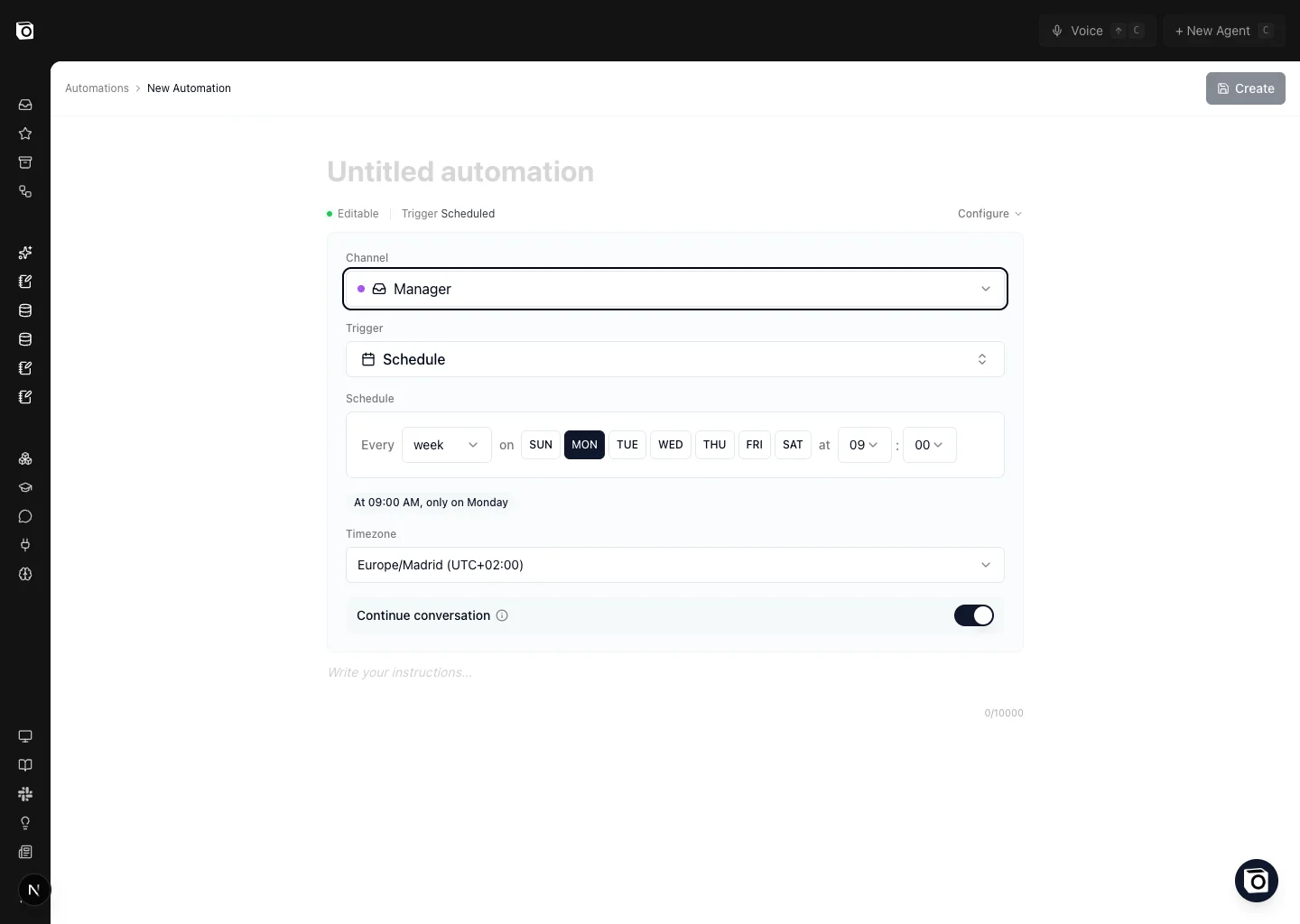 The editor is a single page — name at the top, configuration panel in the middle, prompt at the bottom. **Cmd/Ctrl + S** saves at any time, and the **Test** button (top right of an existing automation) fires it immediately so you can iterate without waiting for the real trigger.
## Share an automation with a link
Open a saved automation's **⋯** menu and choose **Share via link**. The recipient can read the prompt, trigger, schedule, and delivery channel before signing in and installing their own copy.
Notis never shares your connected account. The recipient chooses or connects their own account after installation. Ask them to review the new automation in the editor, especially its schedule, channel, and integration connection.
Share links are available for active recurring schedules, webhooks, and supported integration automations. One-time, paused, and database-triggered automations cannot be shared because their timing or database belongs to the original workspace.
The link keeps a snapshot of the automation at the moment it was created. Revoke it and create a new link when you want to distribute an updated version. Revocation stops future installs but does not delete copies that were already installed.
For ongoing team-wide updates, use a [team template](/account-and-settings/teams) instead. A share link gives each recipient an independent copy.
For webhook automations, the URL is generated after the first save and surfaced inline with a copy button:
The editor is a single page — name at the top, configuration panel in the middle, prompt at the bottom. **Cmd/Ctrl + S** saves at any time, and the **Test** button (top right of an existing automation) fires it immediately so you can iterate without waiting for the real trigger.
## Share an automation with a link
Open a saved automation's **⋯** menu and choose **Share via link**. The recipient can read the prompt, trigger, schedule, and delivery channel before signing in and installing their own copy.
Notis never shares your connected account. The recipient chooses or connects their own account after installation. Ask them to review the new automation in the editor, especially its schedule, channel, and integration connection.
Share links are available for active recurring schedules, webhooks, and supported integration automations. One-time, paused, and database-triggered automations cannot be shared because their timing or database belongs to the original workspace.
The link keeps a snapshot of the automation at the moment it was created. Revoke it and create a new link when you want to distribute an updated version. Revocation stops future installs but does not delete copies that were already installed.
For ongoing team-wide updates, use a [team template](/account-and-settings/teams) instead. A share link gives each recipient an independent copy.
For webhook automations, the URL is generated after the first save and surfaced inline with a copy button: