> ## Documentation Index
> Fetch the complete documentation index at: https://help.notis.ai/llms.txt
> Use this file to discover all available pages before exploring further.
# Blog & Newsletter (via Notion)
> Save the blog posts and newsletters Notis writes into a Notion Blog & Newsletter database, then sync that database to Framer to power your website.
Use a Notion **Blog & Newsletter** database as the home for the content Notis writes, so every draft, image, and newsletter lands in one place and can power your website.
## What this setup does
Notis reads and writes your Notion databases. With a dedicated Blog & Newsletter database, Notis can:
* Explore your Notion workspace for internal context while researching a post
* Save finished drafts, with their generated images, as pages in the database
* Write new posts automatically when you capture content in Notion
## Step 1: Set up your Blog & Newsletter database
The Notis Second Brain already contains a [Blog & Newsletter database](/get-started/notion) set up for you.
You can easily create a Blog & Newsletter database or customize the one that comes with the template. Just make sure it has a title property and Notis will understand it should be used for blogging.
## Step 2: Ask Notis to use it
> *Draft a blog post comparing Notis with Poke, Memorae, and Zapier. Do deep research on the web and explore my Notion workspace.*
> *Please save it in my Blog & Newsletter database.*
> *Check my Notion workspace for relevant data.*
## Step 3 (optional): Power your website with Framer
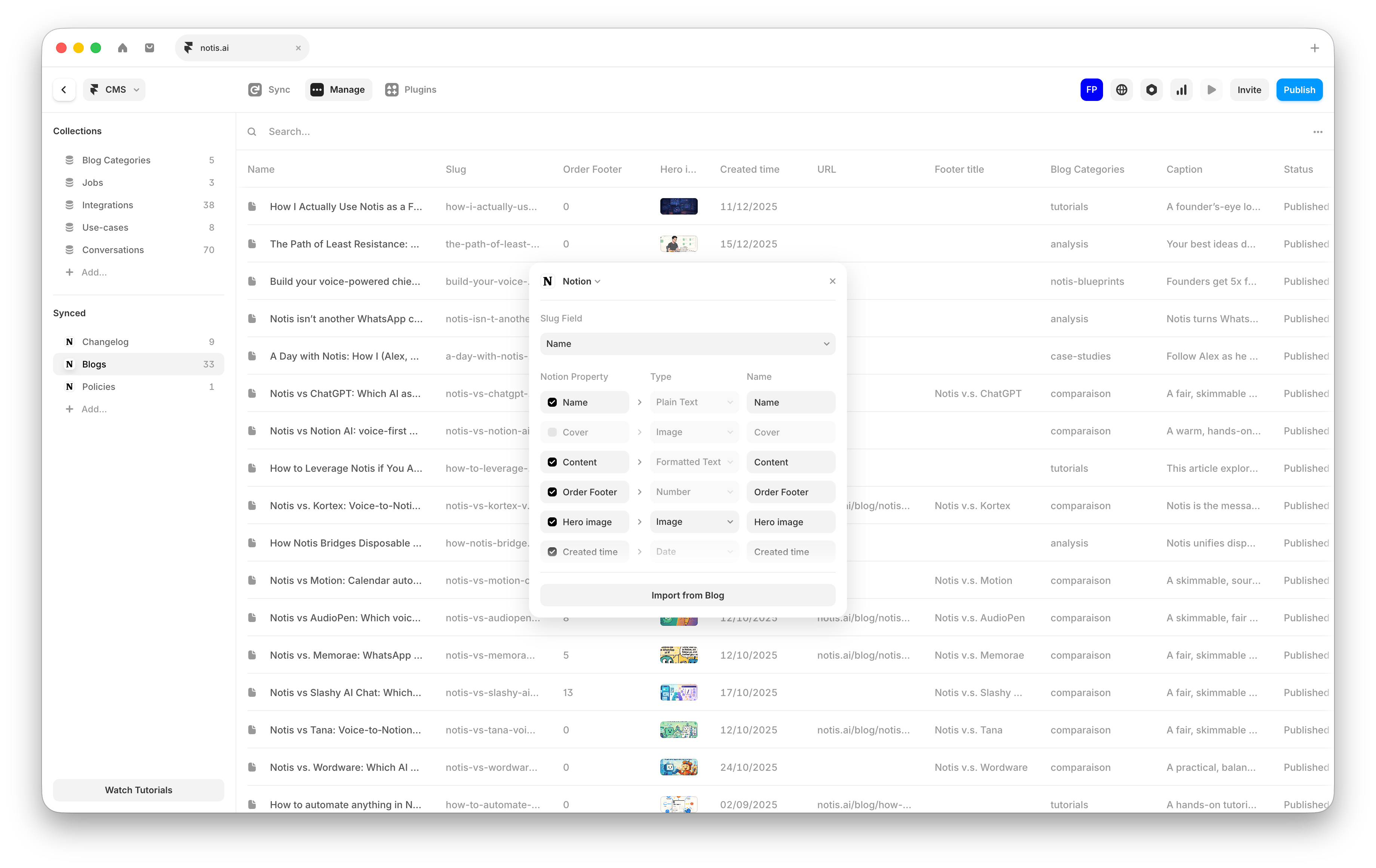 If you want your Notion blog database to power your website, you can connect it to [Framer](https://www.framer.com/):
1. Create your Framer site (or open an existing one).
2. In Framer, add a CMS collection and choose the option to sync it with Notion, then connect it to your **Blog & Newsletter** database.
3. Map your Notion properties to Framer fields (for example: title, meta description, publish date, status, header image, and content).
4. Configure which entries should be published (for example, only pages with `Status = published`).
5. Publish your Framer site.
## Automation: write a blog post from a Notion page update
Use this automation to turn any new piece of content (notes, transcript, outline) captured in Notion into a draft blog post in your Blog database.
1. In the [Notis portal](https://app.notis.ai), open the **Automations** tab and create a new automation.
2. Choose a trigger that runs on a Notion page update in the database where you capture content extracts.
3. Paste and adapt this instruction:
```
A new content extract was captured.
Goal:
Write a blog post from the extract below.
Process:
1. Generate 1 16:9 illustration for the header of the blog post.
2. Generate 3 additional illustrations in different formats to illustrate the article.
3. Write the full article and save it to my Blog database.
Rules:
- Do not use H1 titles.
- The blog post cannot start with a title.
- Insert images in the main content of the Notion page.
- Do not sign the blog post.
- Write in the voice of Flo, the founder and creator of Notis.
```
## Troubleshooting
* **Notis saves the draft somewhere else:** Make sure the database has a title property, is named "Blog & Newsletter", and is [connected to Notis](/notion/connect-notion).
* **Framer does not show a new post:** Check that the page matches the publish filter you configured in Framer (for example `Status = published`).
If you want your Notion blog database to power your website, you can connect it to [Framer](https://www.framer.com/):
1. Create your Framer site (or open an existing one).
2. In Framer, add a CMS collection and choose the option to sync it with Notion, then connect it to your **Blog & Newsletter** database.
3. Map your Notion properties to Framer fields (for example: title, meta description, publish date, status, header image, and content).
4. Configure which entries should be published (for example, only pages with `Status = published`).
5. Publish your Framer site.
## Automation: write a blog post from a Notion page update
Use this automation to turn any new piece of content (notes, transcript, outline) captured in Notion into a draft blog post in your Blog database.
1. In the [Notis portal](https://app.notis.ai), open the **Automations** tab and create a new automation.
2. Choose a trigger that runs on a Notion page update in the database where you capture content extracts.
3. Paste and adapt this instruction:
```
A new content extract was captured.
Goal:
Write a blog post from the extract below.
Process:
1. Generate 1 16:9 illustration for the header of the blog post.
2. Generate 3 additional illustrations in different formats to illustrate the article.
3. Write the full article and save it to my Blog database.
Rules:
- Do not use H1 titles.
- The blog post cannot start with a title.
- Insert images in the main content of the Notion page.
- Do not sign the blog post.
- Write in the voice of Flo, the founder and creator of Notis.
```
## Troubleshooting
* **Notis saves the draft somewhere else:** Make sure the database has a title property, is named "Blog & Newsletter", and is [connected to Notis](/notion/connect-notion).
* **Framer does not show a new post:** Check that the page matches the publish filter you configured in Framer (for example `Status = published`).