> ## Documentation Index
> Fetch the complete documentation index at: https://help.notis.ai/llms.txt
> Use this file to discover all available pages before exploring further.
# Meeting Notes (via Notion)
> Keep your meeting minutes in a Notion database so Notis can prepare briefs from past meetings, enrich your notes, and file action items as tasks.
Use a Notion **Meeting Minutes** database as the home for your meeting notes, so Notis can read past meetings before a call and write your notes and action items after it.
## What this setup does
Notis reads and writes your Notion databases. With a dedicated Meeting Minutes database, Notis can:
* Pull past meeting notes when preparing a brief for your next call
* Save and enrich your meeting minutes with the thoughts you capture by voice
* Turn action items into tasks in your Notion Tasks database
## Step 1: Set up your Meeting Minutes database
The [Notis Second Brain](/notion/second-brain) already contains a Meeting Minutes database set up for you.
You can easily swap it for the database installed by [Granola](https://go.granola.ai/florian-pariset). Just make sure to rename the database to "Meeting Minutes" so Notis understands it should be used for that purpose.
## Step 2: Sync your meeting recorder to Notion
For face-to-face meetings, record a voice note and ask Notis to save it to Meeting Minutes. For online meetings, use [Granola](https://go.granola.ai/florian-pariset) or any meeting recorder that can sync its notes to Notion.
## Step 3: Ask Notis to use it
> *Can you tell me more about who I'm meeting next? Pull up my Gmail history and check my meeting minutes database. Suggest a few talking points we should cover.*
> *Add my thoughts to the minutes of my last meeting and save it to Notion.*
> *Create my tasks in Notion from my last meeting.*
## Automation: post-meeting triage with Circleback
Instead of manually asking Notis to create tasks, have [Circleback](https://circleback.ai) send the transcript and action items to Notis after every meeting, and let Notis file them in Notion.
1. Head over to the automation tab in the [Notis portal](https://app.notis.ai/automations), and create a new automation.
2. Add the instruction below:
```
A meeting has just been completed. The webhook payload contains the transcript and action items from Circleback.
STEP 1: CREATE TASKS
For each action item in the payload:
- Create a task in the user's Notion Tasks database
- Set the task name to the action item text
- Assign to the user
- If a due date is mentioned, set it. Otherwise leave blank.
STEP 2: SAVE MEETING NOTES (optional)
If the transcript is included:
- Create a new entry in the Meeting Minutes database
- Set the title to the meeting title from the payload
- Add the transcript to the content
- Add the action items as a bulleted list under "Action Items"
Do not send a message to the user unless there is an error.
```
1. Configure the trigger as a **Webhook** and copy the webhook URL.
2. In Circleback, go to **Automations** and click "Add step."
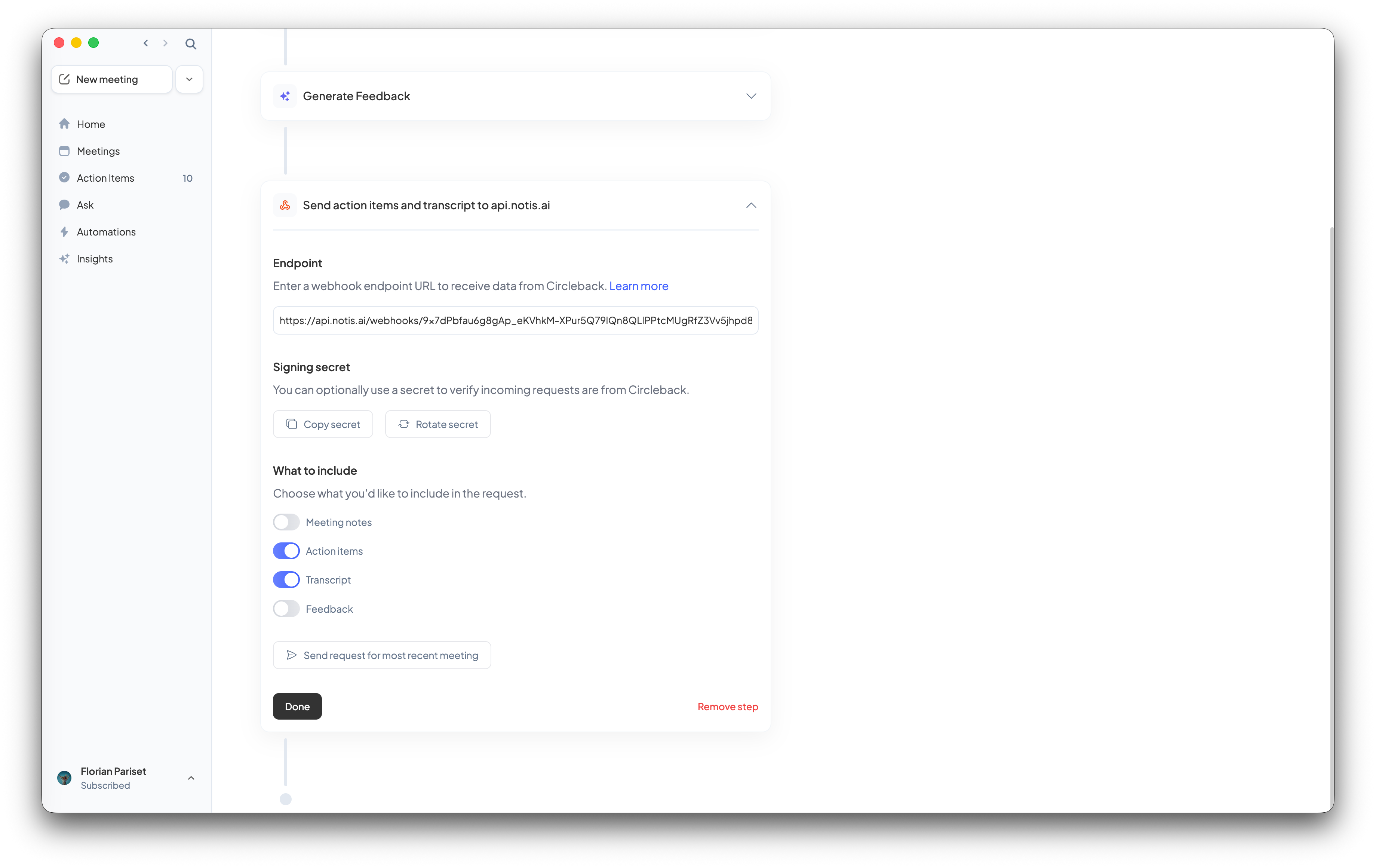 1. Select "Send action items and transcript to [api.notis.ai](http://api.notis.ai)" and paste your Notis webhook URL into the Endpoint field.
2. Under "What to include," enable:
* **Action items** ✓
* **Transcript** ✓
1. Click Done.
Use "Send request for most recent meeting" in Circleback to test the automation with your last call.
Now every meeting automatically flows into Notion. No manual capture needed.
## Troubleshooting
* **Notis can't find your meeting notes:** Make sure the database is named "Meeting Minutes" and is [connected to Notis](/notion/connect-notion).
* **Tasks land in the wrong database:** Name the target database in your instruction, for example "my Notion Tasks database".
1. Select "Send action items and transcript to [api.notis.ai](http://api.notis.ai)" and paste your Notis webhook URL into the Endpoint field.
2. Under "What to include," enable:
* **Action items** ✓
* **Transcript** ✓
1. Click Done.
Use "Send request for most recent meeting" in Circleback to test the automation with your last call.
Now every meeting automatically flows into Notion. No manual capture needed.
## Troubleshooting
* **Notis can't find your meeting notes:** Make sure the database is named "Meeting Minutes" and is [connected to Notis](/notion/connect-notion).
* **Tasks land in the wrong database:** Name the target database in your instruction, for example "my Notion Tasks database".