> ## Documentation Index
> Fetch the complete documentation index at: https://help.notis.ai/llms.txt
> Use this file to discover all available pages before exploring further.
# Connect Notion
> Authorize Notis to access your Notion workspace, choose between the Notis Second Brain template or your own setup, and add a second account if you need one.
Notis is unique because it deeply adapts to your Notion workspace. This page walks you through authorizing Notis, picking between the Second Brain template and your own setup, and managing access over time.
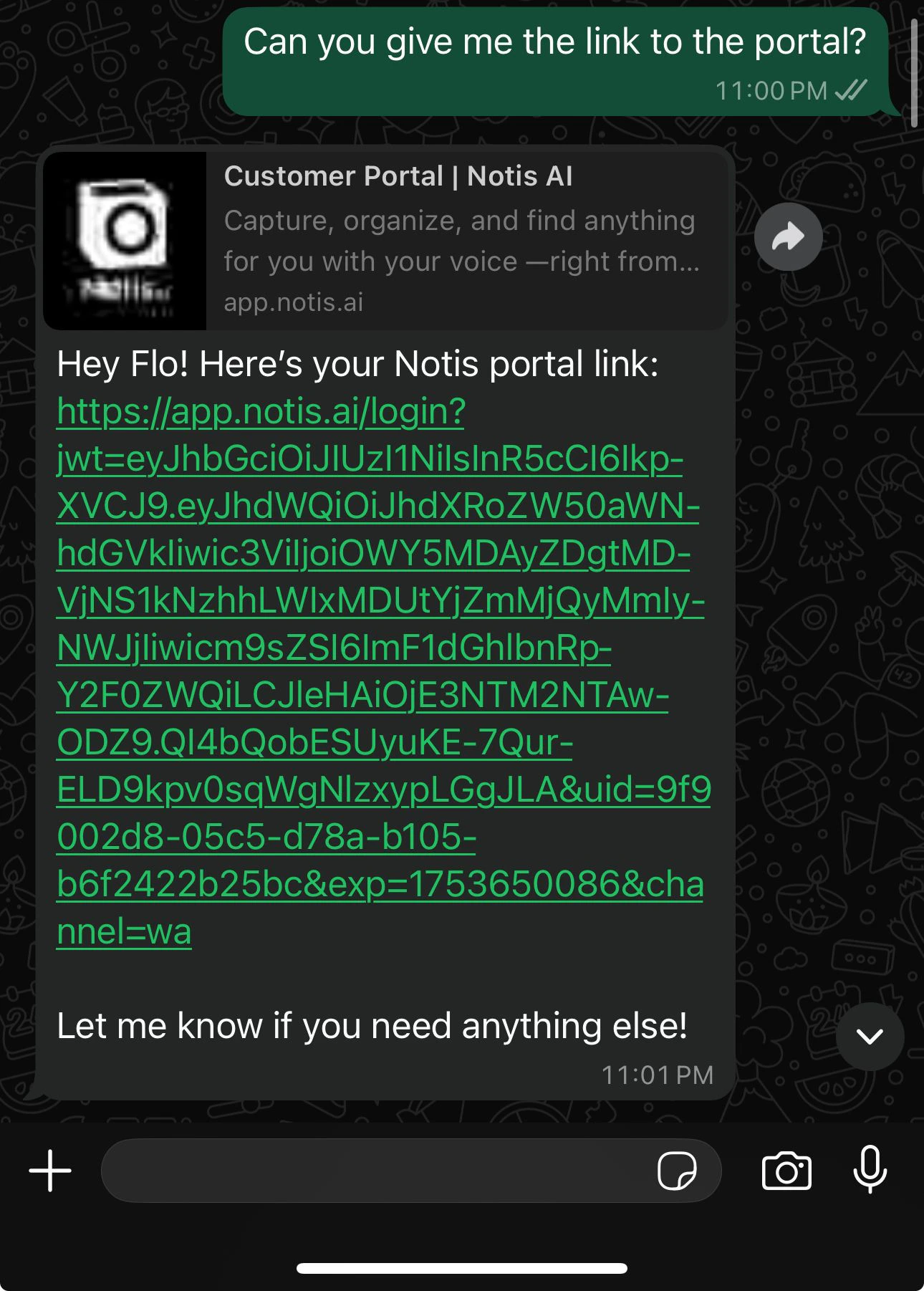
## Step 1 — Open the portal
Send Notis a message asking for your portal:
> *"Send me the link to my portal."*
On Telegram, you can also use the `/portal` command from the **Menu** button.
## Step 2 — Run the Notion authorization flow
1. Click the portal link Notis sent you
2. Open **Integrations**, find **Notion**, click **Connect**
3. Pick one of the two paths below
### Option A — Use the Notis Second Brain template (recommended)
The fastest path. You'll get a clean, opinionated structure that works with every Notis feature out of the box.
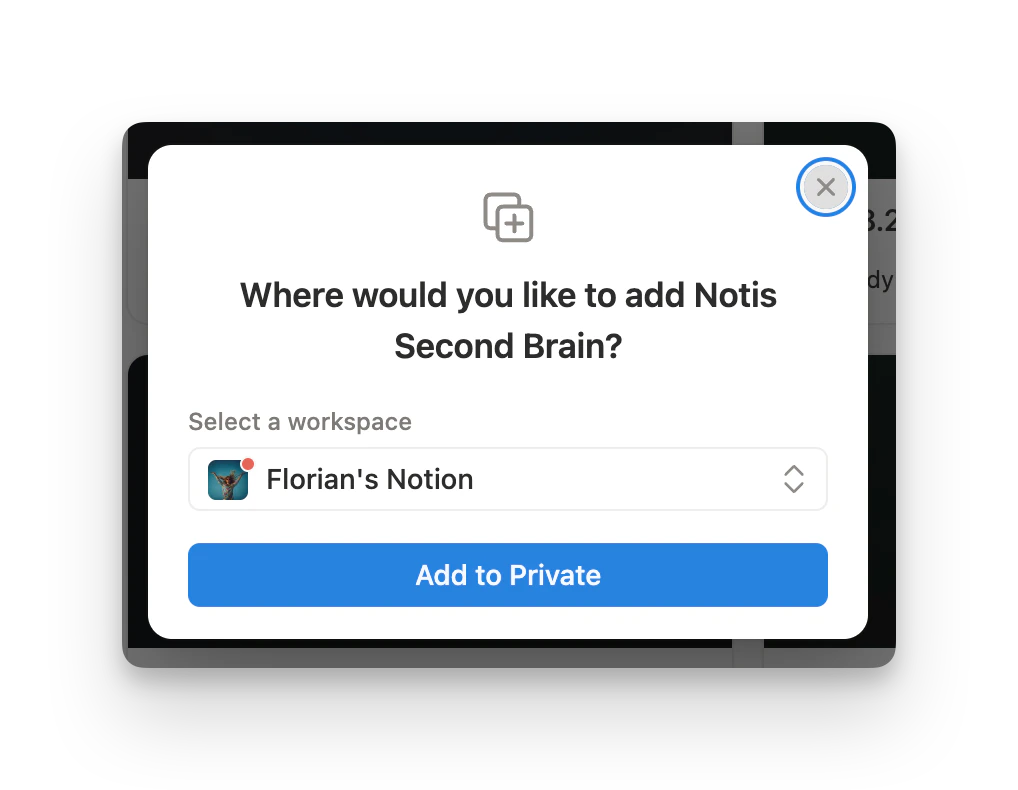
1. In the Notion authorization screen, choose **Use a template provided by the developer**
2. Select your workspace and click **Add to Private** to duplicate the [Notis Second Brain template](https://mindtheflo.notion.site/notis-second-brain-system?source=copy_link)
3. Return to Notis to confirm the connection
4. Notis syncs your databases automatically
Continue to the [Second Brain tour](/notion/second-brain) to see what's inside.
### Option B — Use your existing Notion setup
If you already have a Notion structure you love (Easlo, Thomas Frank, your own template, etc.):
1. In the Notion authorization screen, choose **Select pages to share with Notis**
2. Pick the pages and databases you want Notis to access
3. Notis will have access to all subpages and databases within the pages you select
**Before connecting your own pages, make sure:**
* The pages contain at least one database
* All databases have unique names — duplicates are ignored to avoid confusing Notis
* If you have more than 20 databases, activate the ones you want from the portal
**Pages vs. databases.** Make sure you understand the difference between Notion pages and Notion databases. [Learn more about Notion databases](https://www.notion.com/help/what-is-a-database).
**Database naming.** Use unique, descriptive names. Think how you'd name it so an intern could understand what it's about.
## Adding a second Notion account
You can connect multiple Notion accounts to Notis — useful if your work and personal lives sit in different workspaces.
1. From the portal **Integrations** page, click **Add Account** on the Notion row
2. Authorize the second workspace and label it (e.g. "work", "personal")
3. The first account auto-labels as "default"
When you have multiple accounts, mention which one you want in your message:
> *"Save this note to my work Notion."*
> *"Add this contact to my personal CRM."*
If you don't specify, Notis asks. See [Integrations](/get-started/integrations) for the full multi-account workflow.
## What's next
* [Second Brain template tour](/notion/second-brain) — what each database is for
* [Database and property instructions](/notion/database-instructions) — teach Notis how each database should behave
* [Turn any database into an AI agent](/notion/database-as-agent) — the pattern behind every Notis workflow
 ## Step 2 — Run the Notion authorization flow
1. Click the portal link Notis sent you
2. Open **Integrations**, find **Notion**, click **Connect**
3. Pick one of the two paths below
## Step 2 — Run the Notion authorization flow
1. Click the portal link Notis sent you
2. Open **Integrations**, find **Notion**, click **Connect**
3. Pick one of the two paths below
 ### Option A — Use the Notis Second Brain template (recommended)
The fastest path. You'll get a clean, opinionated structure that works with every Notis feature out of the box.
1. In the Notion authorization screen, choose **Use a template provided by the developer**
2. Select your workspace and click **Add to Private** to duplicate the [Notis Second Brain template](https://mindtheflo.notion.site/notis-second-brain-system?source=copy_link)
3. Return to Notis to confirm the connection
4. Notis syncs your databases automatically
Continue to the [Second Brain tour](/notion/second-brain) to see what's inside.
### Option B — Use your existing Notion setup
If you already have a Notion structure you love (Easlo, Thomas Frank, your own template, etc.):
1. In the Notion authorization screen, choose **Select pages to share with Notis**
2. Pick the pages and databases you want Notis to access
3. Notis will have access to all subpages and databases within the pages you select
### Option A — Use the Notis Second Brain template (recommended)
The fastest path. You'll get a clean, opinionated structure that works with every Notis feature out of the box.
1. In the Notion authorization screen, choose **Use a template provided by the developer**
2. Select your workspace and click **Add to Private** to duplicate the [Notis Second Brain template](https://mindtheflo.notion.site/notis-second-brain-system?source=copy_link)
3. Return to Notis to confirm the connection
4. Notis syncs your databases automatically
Continue to the [Second Brain tour](/notion/second-brain) to see what's inside.
### Option B — Use your existing Notion setup
If you already have a Notion structure you love (Easlo, Thomas Frank, your own template, etc.):
1. In the Notion authorization screen, choose **Select pages to share with Notis**
2. Pick the pages and databases you want Notis to access
3. Notis will have access to all subpages and databases within the pages you select