> ## Documentation Index
> Fetch the complete documentation index at: https://help.notis.ai/llms.txt
> Use this file to discover all available pages before exploring further.
# Turn any database into an AI agent
> Combine a Notion database, custom instructions, and Notis automations to spin up purpose-built AI agents that read and write to your workspace.
Notis is built around a simple idea: any software has three parts — a database, business logic, and a user interface. Notion gives you the database and the logic; Notis gives you the interface and the AI runtime. Together, any Notion database becomes its own AI agent.
## 1. Design your database
Create a Notion database with the properties your workflow needs. Think about what data each entry must capture for the agent to do its job — title, status, dates, files, relations to other databases.
A "Blog Posts" database might have:
* **Title** — the post title
* **Status** — Draft / Researching / Ready / Published
* **Hero image** — file/media property
* **Sources** — rich text or relation to a Bookmarks database
* **Outline** — rich text
A "Bug Reports" database might have:
* **Title** — short summary
* **Severity** — Low / Medium / High / Critical
* **Steps to reproduce** — rich text
* **Screenshot** — file/media
* **Linked feature** — relation to Features database
## 2. Add your business logic
Add custom logic directly inside Notion by writing instructions in:
* **The database description** — overall behavior. *"This is the blog content database. When a new entry is created, perform a deep search on the topic, fill the Sources field, and generate a hero image."*
* **The description of each property** — per-field rules. On the Hero Image property: *"Always generate a 1536x1024 landscape image with our brand color #24D366."* On the Outline property: *"Use H2 sections only — no H3 or deeper."*
This turns each database into a self-documenting AI agent. Notis re-reads the descriptions on every interaction, so changes take effect immediately.
See [Database and property instructions](/notion/database-instructions) for the full reference and examples.
 ## 3. Choose your interface
Trigger the agent from any [channel](/channels/channels-compared) — WhatsApp, Telegram, email, Slack, voice — or run it on autopilot with [Automations](/get-started/automate).
Examples that combine all three layers:
> *"Create a new blog post about how Notis differs from custom GPTs, with research and a hero image."* — Triggered by chat. The Blog Posts database description tells Notis to deep-search, source, and illustrate before saving.
> *"Every Monday at 9 AM, generate a weekly digest from this week's Tasks and post it to my Notes database."* — Triggered by a [scheduled automation](/get-started/automate).
> *"When a new row is added to the Bug Reports database, run a triage prompt and assign a severity."* — Triggered by a [Notion webhook](#trigger-notis-from-notion-via-webhook).
Start small. Build one database with one rule in its description, see how Notis handles it, then layer in property-level instructions. The instructions you write today become the spec the AI follows tomorrow.
## Trigger Notis from Notion via webhook
Notion's built-in automations can call any HTTPS URL when a database row changes — that's exactly what a Notis [webhook automation](/get-started/automate#webhook) is. Pair them and you get a Notion database that runs Notis on every status change, new row, or property edit.
Create a webhook automation in Notis first (chat or portal — see [Automations](/get-started/automate)) and copy its webhook URL. Then, on the Notion side:
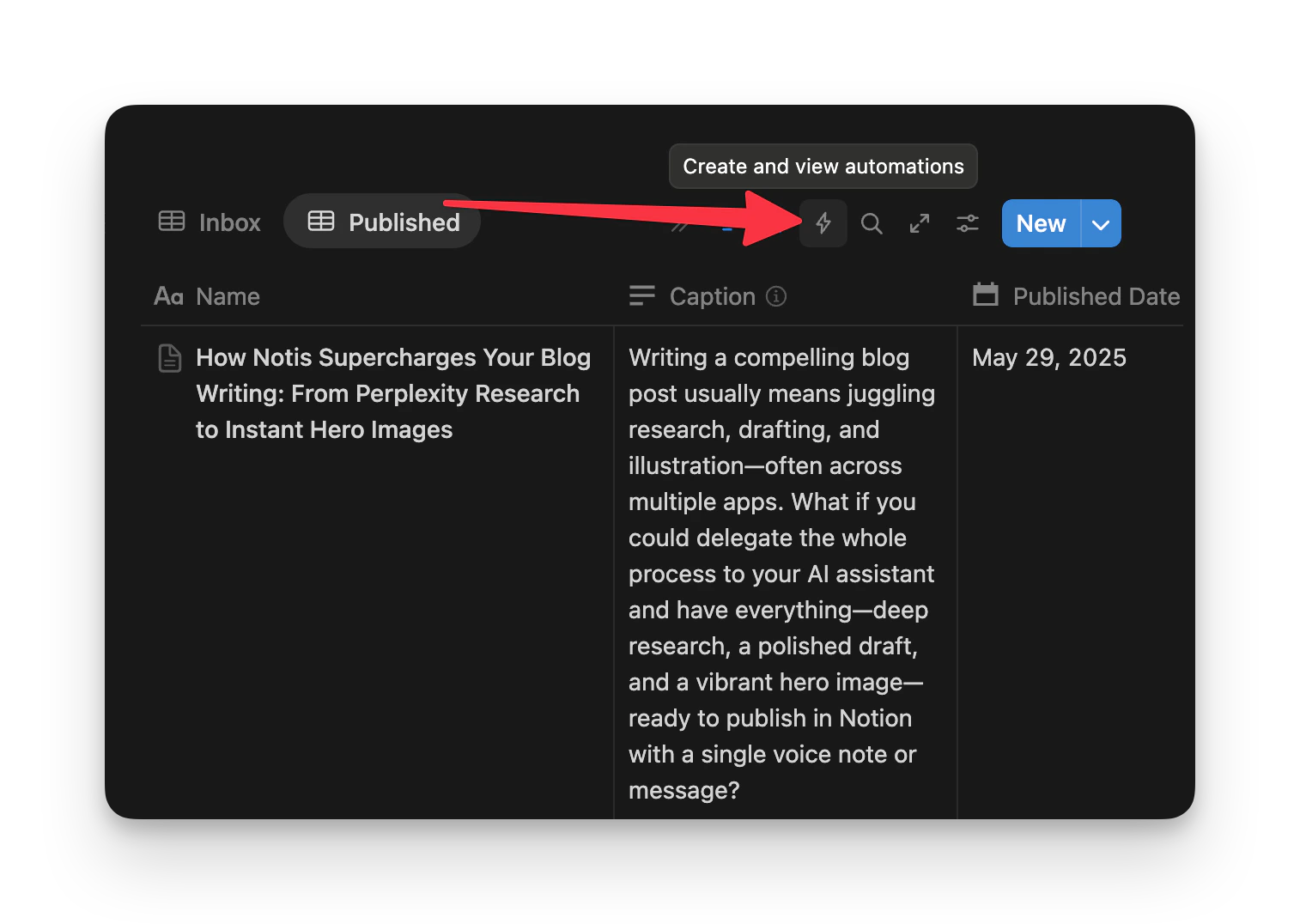
1. Open the database that should trigger Notis and click the automations icon in the top bar:
## 3. Choose your interface
Trigger the agent from any [channel](/channels/channels-compared) — WhatsApp, Telegram, email, Slack, voice — or run it on autopilot with [Automations](/get-started/automate).
Examples that combine all three layers:
> *"Create a new blog post about how Notis differs from custom GPTs, with research and a hero image."* — Triggered by chat. The Blog Posts database description tells Notis to deep-search, source, and illustrate before saving.
> *"Every Monday at 9 AM, generate a weekly digest from this week's Tasks and post it to my Notes database."* — Triggered by a [scheduled automation](/get-started/automate).
> *"When a new row is added to the Bug Reports database, run a triage prompt and assign a severity."* — Triggered by a [Notion webhook](#trigger-notis-from-notion-via-webhook).
Start small. Build one database with one rule in its description, see how Notis handles it, then layer in property-level instructions. The instructions you write today become the spec the AI follows tomorrow.
## Trigger Notis from Notion via webhook
Notion's built-in automations can call any HTTPS URL when a database row changes — that's exactly what a Notis [webhook automation](/get-started/automate#webhook) is. Pair them and you get a Notion database that runs Notis on every status change, new row, or property edit.
Create a webhook automation in Notis first (chat or portal — see [Automations](/get-started/automate)) and copy its webhook URL. Then, on the Notion side:
1. Open the database that should trigger Notis and click the automations icon in the top bar:
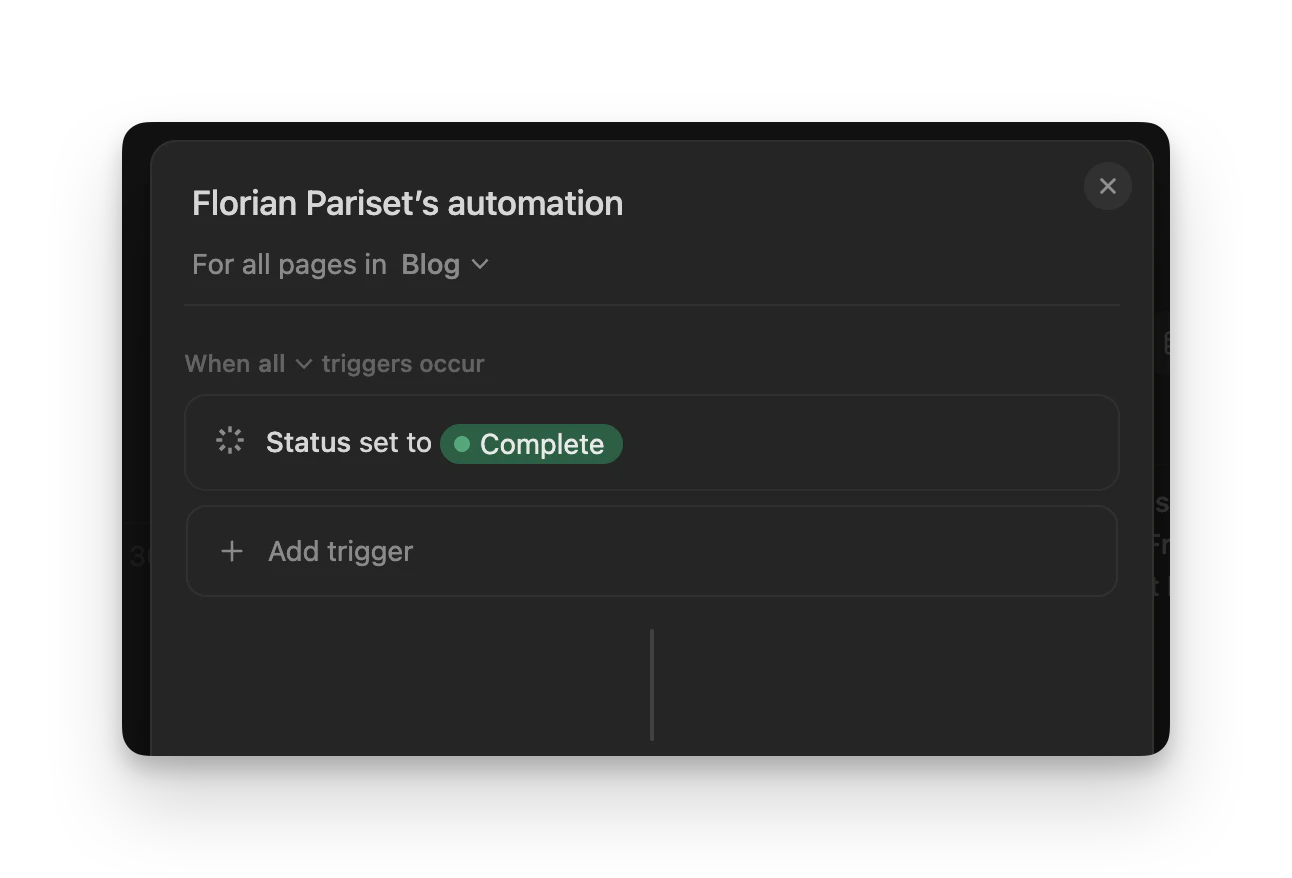
 2. Configure your trigger in the **When** section — for example "Status set to Complete":
 3. In the **Do** section, choose **Send webhook**, paste your Notis automation's webhook URL, and select the properties you want to pass along with your instructions:
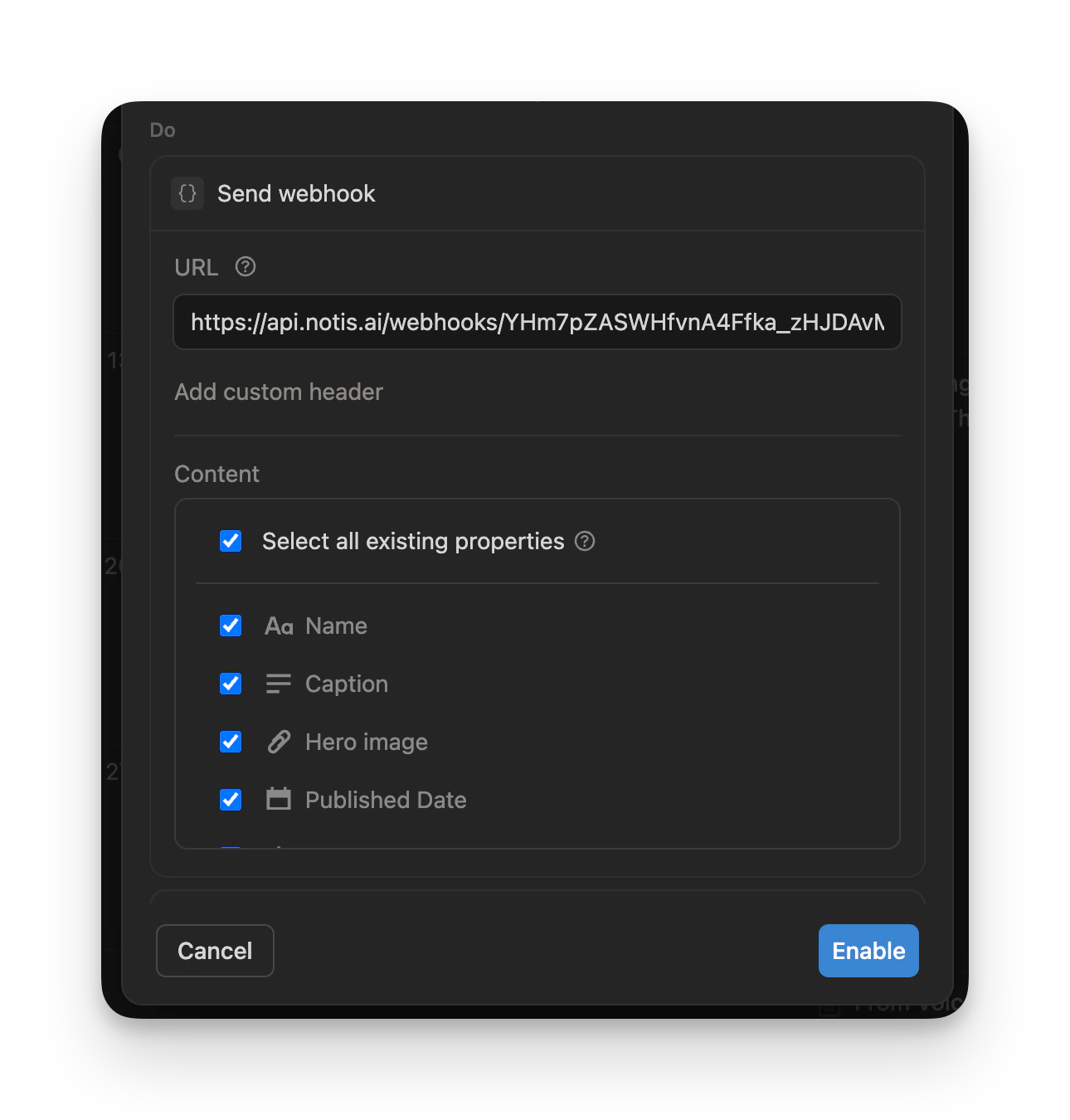 The selected properties are forwarded to Notis as the request body, so your automation prompt can reference them ("write a recap based on the page's title and caption", "use the published date to schedule the post", and so on).
For the full list of trigger options, see the [Notion webhook docs](https://www.notion.com/help/webhook-actions). The same webhook URL works with [Zapier](https://help.zapier.com/hc/en-us/articles/8496083355661-How-to-get-started-with-Webhooks-by-Zapier#h_01HQ87H8BT49GC1PFJ910GZV8S), [Make](https://help.make.com/webhooks), [Pipedream](https://pipedream.com/docs/workflows/building-workflows/triggers#http), and any other automation platform.
Keep your webhook URLs strictly private — they have full editing access to your workspace. Webhooks don't return any information, so they can't be used to read your Notion workspace. For that, use the [Notis API](https://www.notion.so/1ed6f212c58c804188b9ea2da2508aac).
## What's next
* [Database and property instructions](/notion/database-instructions) — exact syntax and examples
* [Automations](/get-started/automate) — wire your database agent to a schedule or webhook
* [Media Buyer guide](/guides/media-buyer) and [Brain Dumps guide](/guides/brain-dumps) — end-to-end examples of this pattern in action
The selected properties are forwarded to Notis as the request body, so your automation prompt can reference them ("write a recap based on the page's title and caption", "use the published date to schedule the post", and so on).
For the full list of trigger options, see the [Notion webhook docs](https://www.notion.com/help/webhook-actions). The same webhook URL works with [Zapier](https://help.zapier.com/hc/en-us/articles/8496083355661-How-to-get-started-with-Webhooks-by-Zapier#h_01HQ87H8BT49GC1PFJ910GZV8S), [Make](https://help.make.com/webhooks), [Pipedream](https://pipedream.com/docs/workflows/building-workflows/triggers#http), and any other automation platform.
Keep your webhook URLs strictly private — they have full editing access to your workspace. Webhooks don't return any information, so they can't be used to read your Notion workspace. For that, use the [Notis API](https://www.notion.so/1ed6f212c58c804188b9ea2da2508aac).
## What's next
* [Database and property instructions](/notion/database-instructions) — exact syntax and examples
* [Automations](/get-started/automate) — wire your database agent to a schedule or webhook
* [Media Buyer guide](/guides/media-buyer) and [Brain Dumps guide](/guides/brain-dumps) — end-to-end examples of this pattern in action