Quick start: speak these

Prepare a brief for my next call.
Create my tasks on Todoist from my last meeting transcript.
Draft a follow-up email to Alex.
Notis handles the prep, the capture, and the follow-through.

Meeting lifecycle with Notis

Before the meeting

Get context and talking points:
Can you tell me more about who I’m meeting next? Pull up my Gmail history and check my meeting minutes database. Suggest a few talking points we should cover.
Notis will pull:
  • Previous email threads
  • Past meeting notes
  • Suggested talking points
  • Key context (how you met, open items)

During the meeting

For face-to-face meetings, record your meetings directly with a voice note. For other meetings, we recommend you use Granola or any meeting recorder that allows you to sync your meeting minutes to Notion.

After the meeting

Capture your notes by voice and ask Notis to handle any follow-ups such as:
  • Enrich your meeting minutes with your own thoughts and save it to Notion.
  • Update your CRM with follow-up tasks, notes, or move the lead in your sales funnel.
  • Create tasks in your preferred task management tool (e.g., Todoist, Notion, Google Tasks, etc.)
  • Draft a follow-up email.

Set up your Meeting Minutes in Notion

The Notis Second Brain already contains a Meeting Minutes database set up for you.
You can easily swap it for the database installed by Granola. Just make sure to rename the database to “Meeting Minutes” so Notis understands it should be used for that purpose.
IntegrationWhat it enablesExamples
Meeting AssistantMeeting notes database, task creationNotion
CalendarMeeting context and schedulingGoogle Calendar, Outlook
EmailEmail history, contact details and follow-up draftsGmail, Outlook
Online MeetingMeeting linksZoom, Google Meet
Task ManagerCreate follow-up tasksTodoist, Google Tasks, Asana
CRMUpdate lead status, store notes, update sales pipelineHubSpot, Pipedrive, Salesforce
Meeting SchedulerBook a meeting link with a leadCal.com, Google Calendar, Calendly

Automations

Meeting Prep

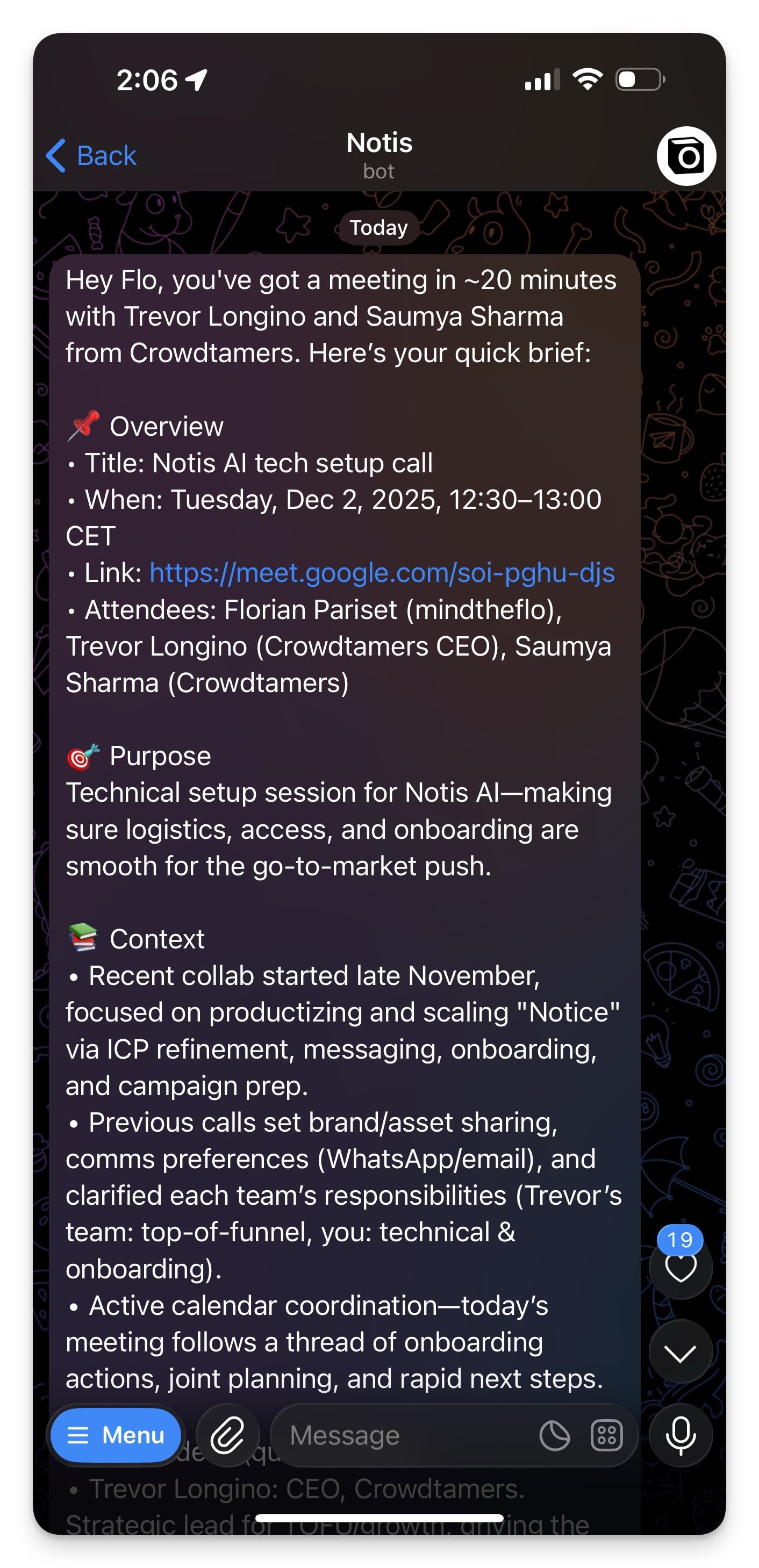
If you’re like me and constantly jump into meetings with no idea who you are talking to or why, setup this automation to receive a full meeting prep right before any meeting you’re about to jump in.
  1. Make sure you have connected your calendar in the Integrations tabs.
  2. Head over to the automation tab in the Notis portal, and create a new automation.
  3. Add the instruction bellow (feel free to customize):
The user has an upcoming meeting.
Determine whether any invitees other than the user are attending.

If the meeting has no other invitees:
Stop immediately. Produce no output of any kind.

If the meeting includes other invitees:
Your task is to generate a complete meeting brief for the user.

Goal: Produce a concise but thorough meeting brief for the upcoming meeting.

When preparing the brief:

• Search the user’s emails for any prior communication with the attendees.
• Search the user’s meeting notes or minutes for any past meetings involving them.
• If neither source yields relevant information, perform a deep web search to gather context about the attendees and any relevant organizations, projects, or recent news.

Use the following structure for the final output:

Template [Feel free to adjust]
Hey <user name>, you've got a meeting in 30 minutes with <invitees>. I took the liberty to research them and prepare a meeting brief for you.

📌 Overview
• Title:
• When:
• Link / Location:
• Attendees:

🎯 Purpose
One-sentence summary of why this meeting exists.

📚 Context
Short recap of any relevant history:
• Prior meetings
• Key emails or decisions
• Useful background on attendees (company, role, recent activity)

👤 Attendees (quick profiles)
Name — Role
• Relationship/history
• Latest signals or updates
• Any relevant motivation or angle
(repeat for each person)

💬 What to Cover
Top 3–5 points worth focusing on.

❓ Questions to Ask
Smart clarifiers or nudges that move things forward.

⚠️ Watch-outs
Risks, sensitivities, or tricky past issues.

✨ Opportunities
Where you can create momentum or push an agenda.

📝 Prep
Quick checklist (docs to open, numbers to know, decisions to make).

🏁 Desired Outcome
1–2 bullets describing what “success” looks like.

Go kill them tiger! 🐯
  1. Configure the trigger so the automation runs before each event:
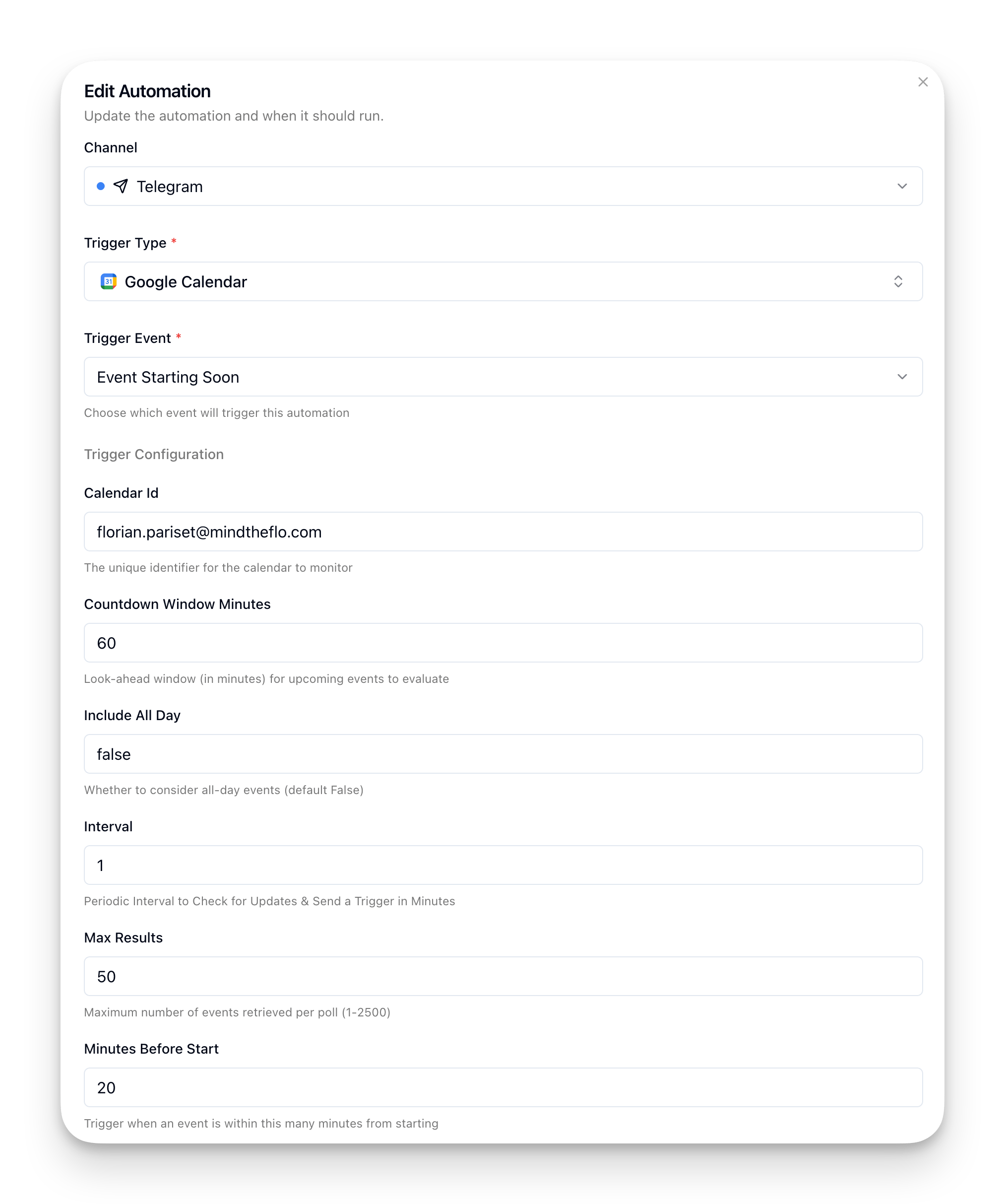
CleanShot 2025-12-02 at 19.11.59@2x.png And voilà! You’ll receive a super useful meeting prep before entering every meeting. IMG_4F752DFF83E2-1.jpeg

Post-Meeting Triage with Circleback

Automate what happens after every meeting. Instead of manually asking Notis to create tasks, have Circleback send the transcript and action items to Notis automatically.
  1. Head over to the automation tab in the Notis portal, and create a new automation.
  2. Add the instruction below:
A meeting has just been completed. The webhook payload contains the transcript and action items from Circleback.

STEP 1: CREATE TASKS
For each action item in the payload:
- Create a task in the user's Notion Tasks database
- Set the task name to the action item text
- Assign to the user
- If a due date is mentioned, set it. Otherwise leave blank.

STEP 2: SAVE MEETING NOTES (optional)
If the transcript is included:
- Create a new entry in the Meeting Minutes database
- Set the title to the meeting title from the payload
- Add the transcript to the content
- Add the action items as a bulleted list under "Action Items"

Do not send a message to the user unless there is an error.
  1. Configure the trigger as a Webhook and copy the webhook URL.
  2. In Circleback, go to Automations and click “Add step.”
CleanShot 2026-01-22 at 18.20.01@2x.png
  1. Select “Send action items and transcript to api.notis.ai” and paste your Notis webhook URL into the Endpoint field.
  2. Under “What to include,” enable:
  • Action items
  • Transcript
  1. Click Done.
Use “Send request for most recent meeting” in Circleback to test the automation with your last call.
Now every meeting automatically flows into your task system. No manual capture needed.

Pro tips

  • Be specific with the tools you want Notis to pull information from or update.
  • You can send multiple instructions in a single message.
  • Create automations for the instructions you regularly send to Notis.