

What this setup does
Notis reads and writes your Notion databases. With a dedicated Meeting Minutes database, Notis can:- Pull past meeting notes when preparing a brief for your next call
- Save and enrich your meeting minutes with the thoughts you capture by voice
- Turn action items into tasks in your Notion Tasks database
Step 1: Set up your Meeting Minutes database
The Notis Second Brain already contains a Meeting Minutes database set up for you.Step 2: Sync your meeting recorder to Notion
For face-to-face meetings, record a voice note and ask Notis to save it to Meeting Minutes. For online meetings, use Granola or any meeting recorder that can sync its notes to Notion.Step 3: Ask Notis to use it
Can you tell me more about who I’m meeting next? Pull up my Gmail history and check my meeting minutes database. Suggest a few talking points we should cover.
Add my thoughts to the minutes of my last meeting and save it to Notion.
Create my tasks in Notion from my last meeting.
Automation: post-meeting triage with Circleback
Instead of manually asking Notis to create tasks, have Circleback send the transcript and action items to Notis after every meeting, and let Notis file them in Notion.- Head over to the automation tab in the Notis portal, and create a new automation.
- Add the instruction below:
- Configure the trigger as a Webhook and copy the webhook URL.
- In Circleback, go to Automations and click “Add step.”
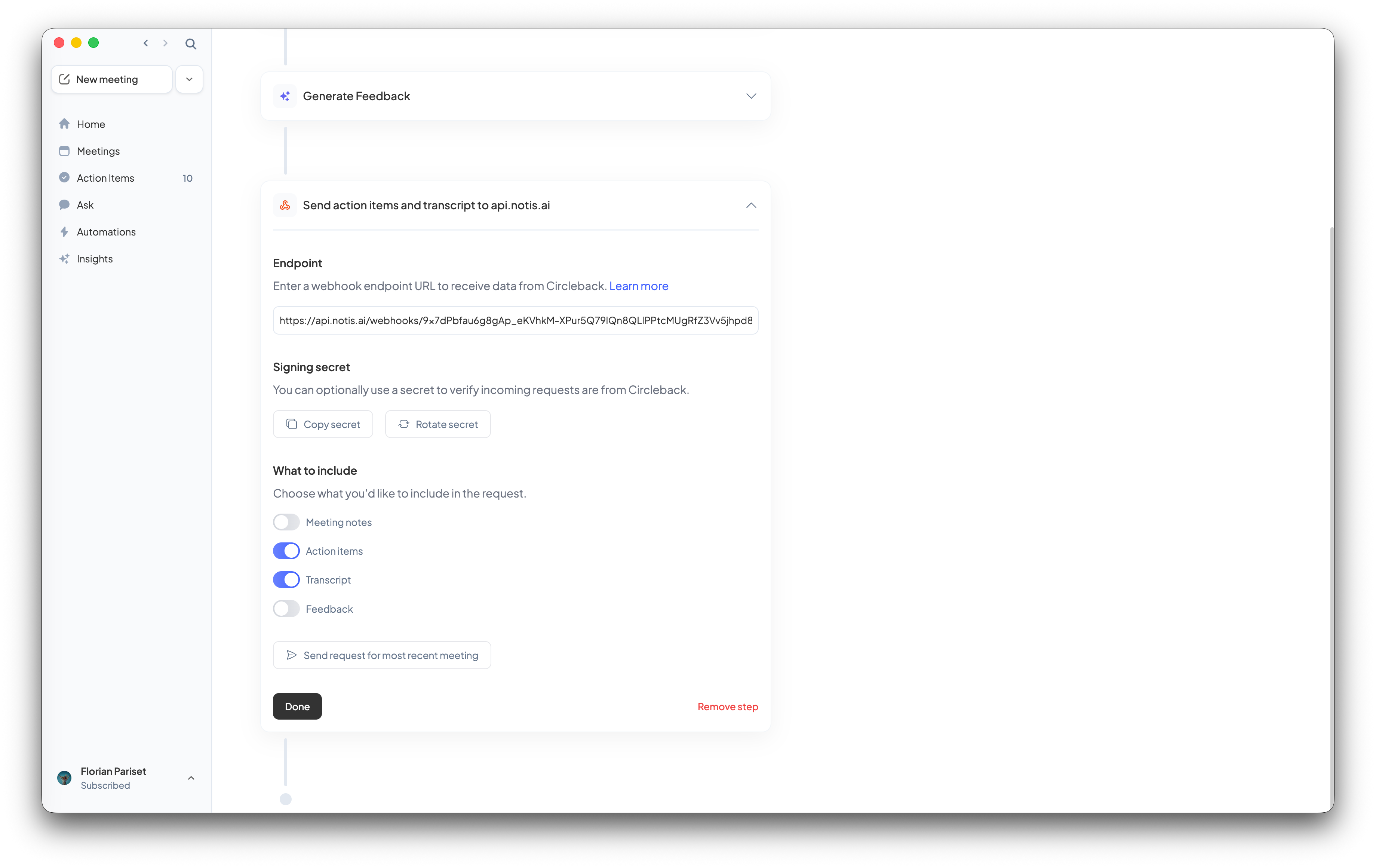
- Select “Send action items and transcript to api.notis.ai” and paste your Notis webhook URL into the Endpoint field.
- Under “What to include,” enable:
- Action items ✓
- Transcript ✓
- Click Done.
Troubleshooting
- Notis can’t find your meeting notes: Make sure the database is named “Meeting Minutes” and is connected to Notis.
- Tasks land in the wrong database: Name the target database in your instruction, for example “my Notion Tasks database”.