Tour the databases included in the Notis Second Brain template — Areas, Projects, Tasks, Notes, Bookmarks, Meeting Minutes, Contacts & CRM, and Features & Bugs.
The Notis Second Brain is a comprehensive productivity template designed to manage every part of your life in Notion with Notis. This page walks through each database, what it’s for, and how Notis uses it.If you haven’t installed the template yet, start with Connect Notion.Jump to a database:
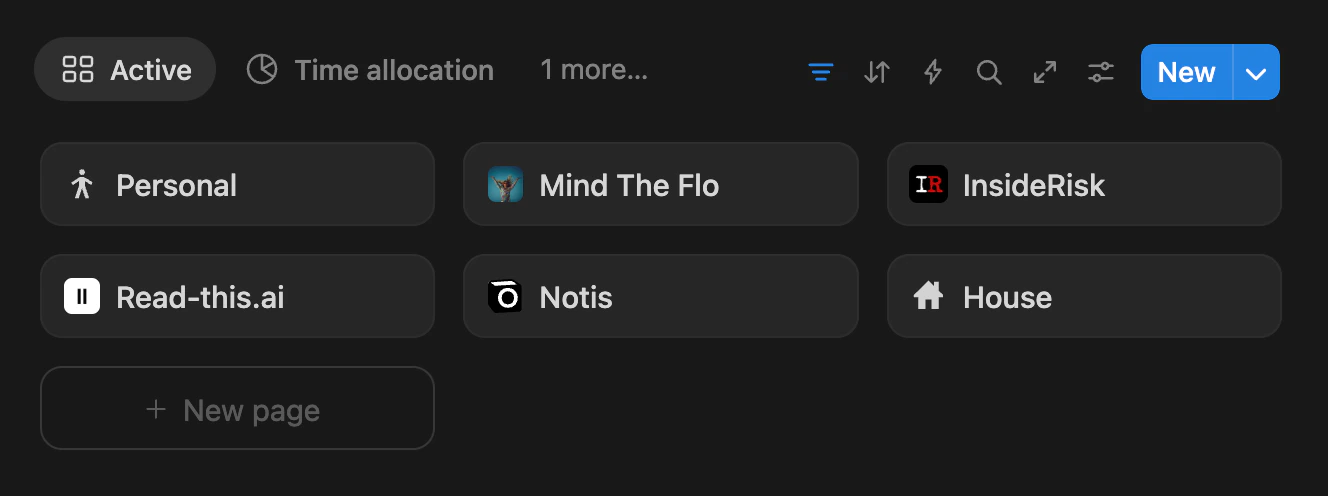
Areas represent the different aspects of your life that you organize your time around. Think about how you split your time during your week and weekend.
“Areas are parts of my life that I organize my time around. You’re likely to have different areas in your life that you share your time across during the week and the weekend.”
For example, you might have areas like “Personal,” “Work,” or specific work streams. These categories help you sort your entire workspace quickly and efficiently.
Use the same areas for time-boxing your week in your calendar. A “Timeboxing” calendar in Notion lets you lock the week per area based on the time you want to allocate to each work stream — easy way to make sure you’re spending enough time in each priority.
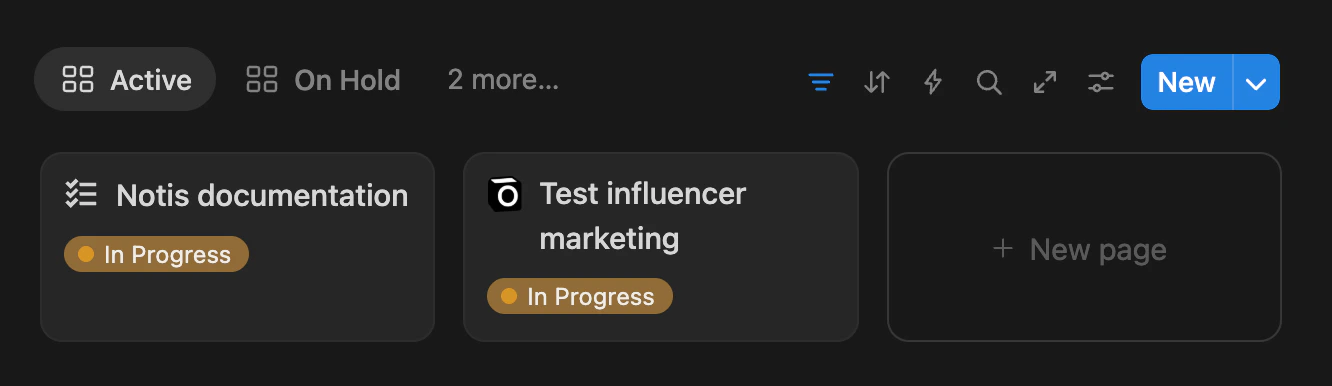
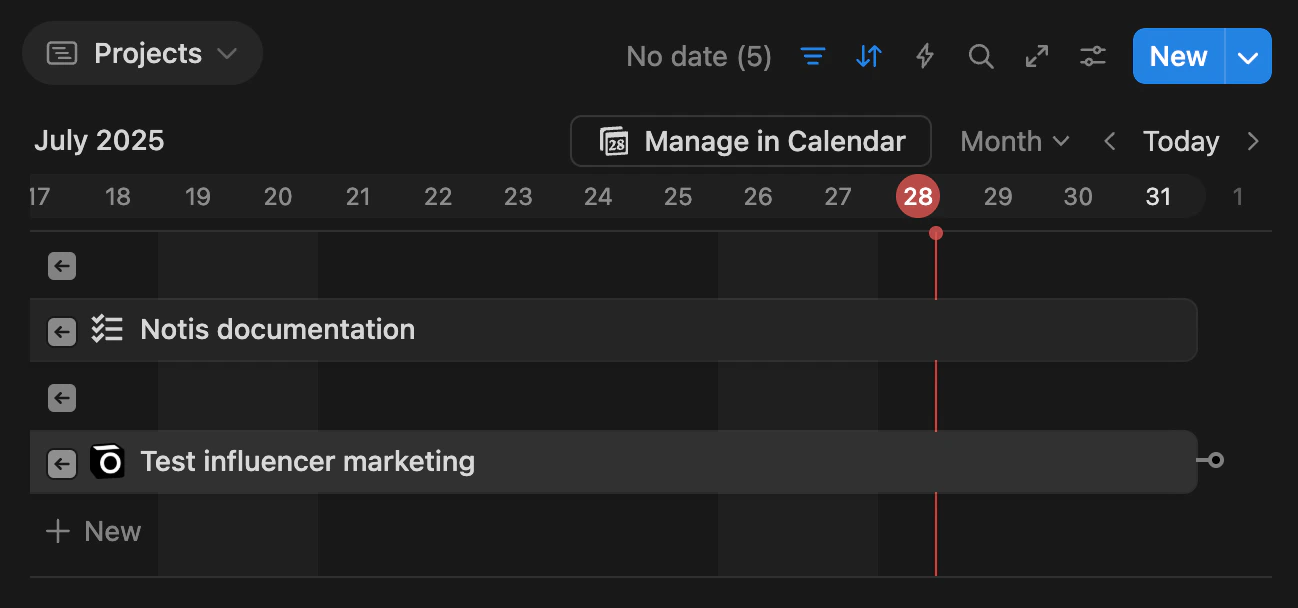
Projects are collections of tasks. As a rule of thumb, projects require more than a day to complete. They serve as a useful abstraction for attaching notes, documents, tasks, and reminders to track progress over time. Unlike Areas, they have a beginning and end.
“Creating projects is a valuable abstraction for attaching notes, documents, tasks, and reminders to track their progress over time.”
For example, you might create a project called “Launch on Product Hunt” and link it to the “Notis” Area. Within this project, you can create tasks like “Brainstorm hook for Product Hunt” and track their progress.
Tasks are small chunks of work that you can complete in a day. The Tasks & Reminders database helps you stay on top of your daily activities and priorities.
“If you need more than one day to complete a task, it’s more likely to be a project.”
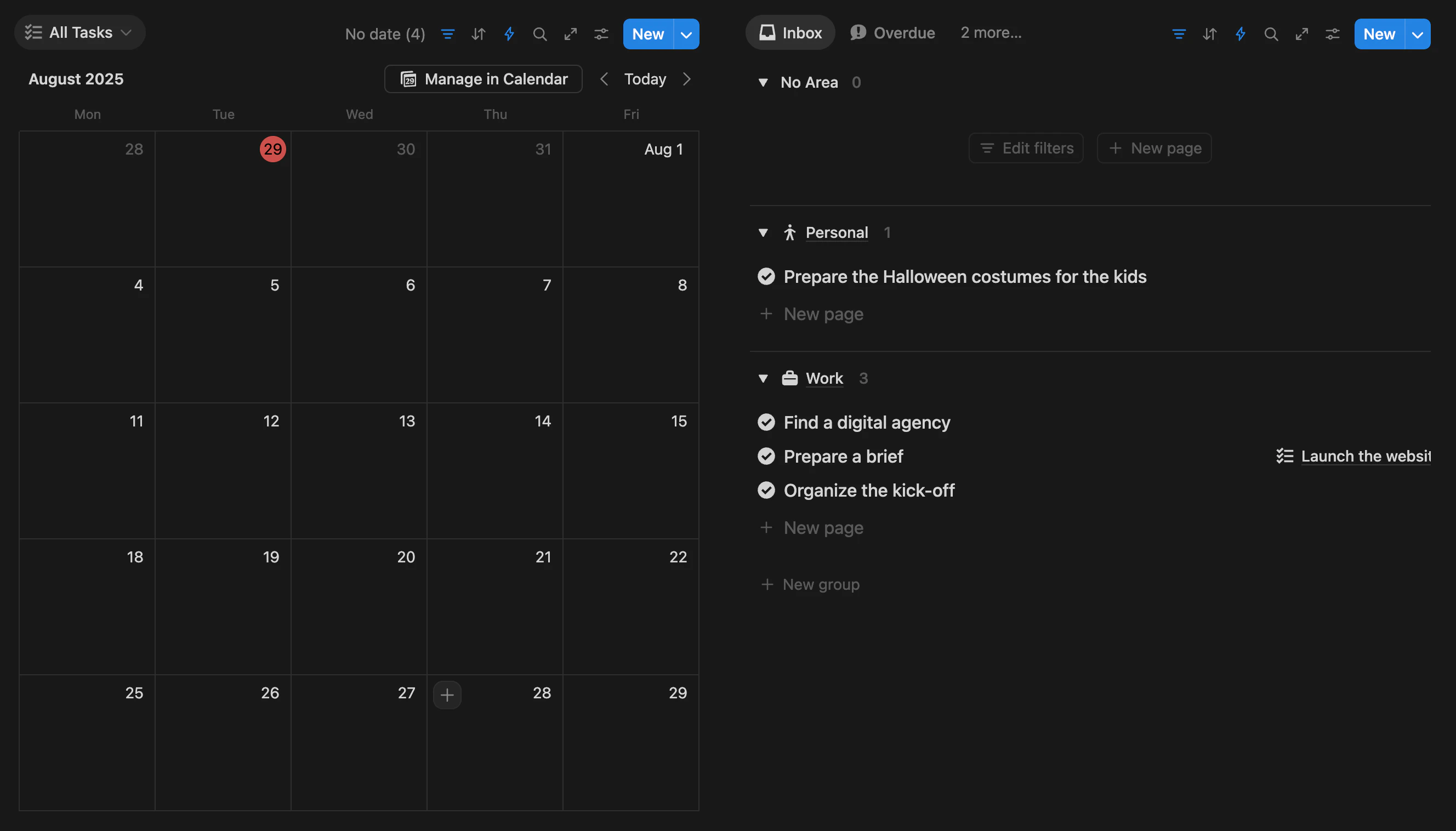
For example, you might create a task like “Post the video about the Notis second-brain system” and assign it to the “Personal” Area with a specific due date. The calendar view lets you drag and drop tasks to schedule them.
Download Notion Calendar to view your tasks alongside your other calendars and time-box from one place.
Organize your week by drag-and-dropping tasks from the right side (inbox) to the left side (scheduled). You’ll see a clean week ahead in seconds.
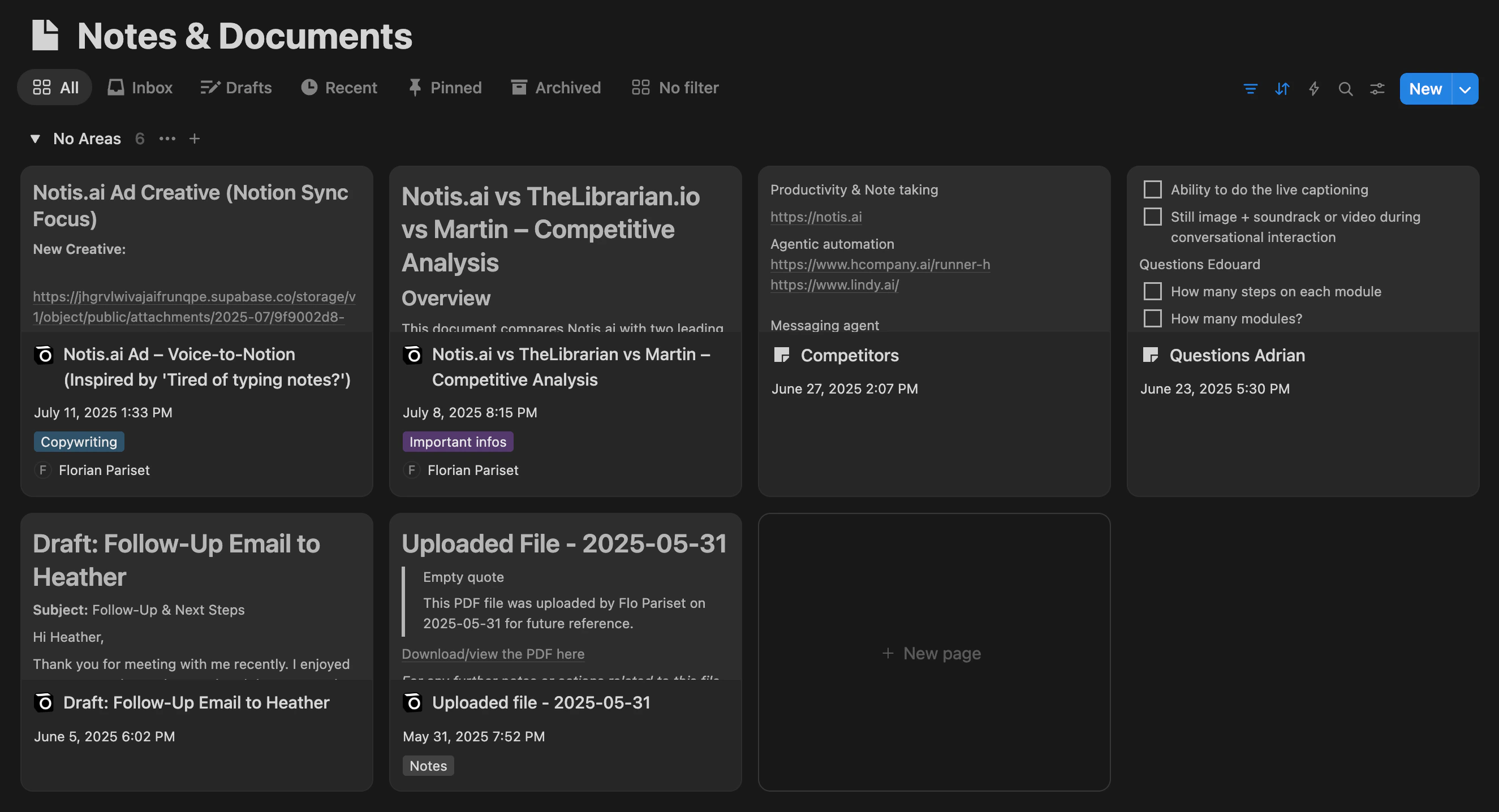
Notes & Documents are everything you write yourself. This database helps you organize thoughts, ideas, and longer-form content.
“Notes are things that you write — things that you write yourself. If you write a quick note for yourself, it’s just like a document you don’t spend much time on. If you write a full presentation, it’s the same thing.”
For example, you might create a document titled “How to manage your anxiety at the dentist” and link it to your “Personal” Area. It can be a quick note or a long-form document — same database.
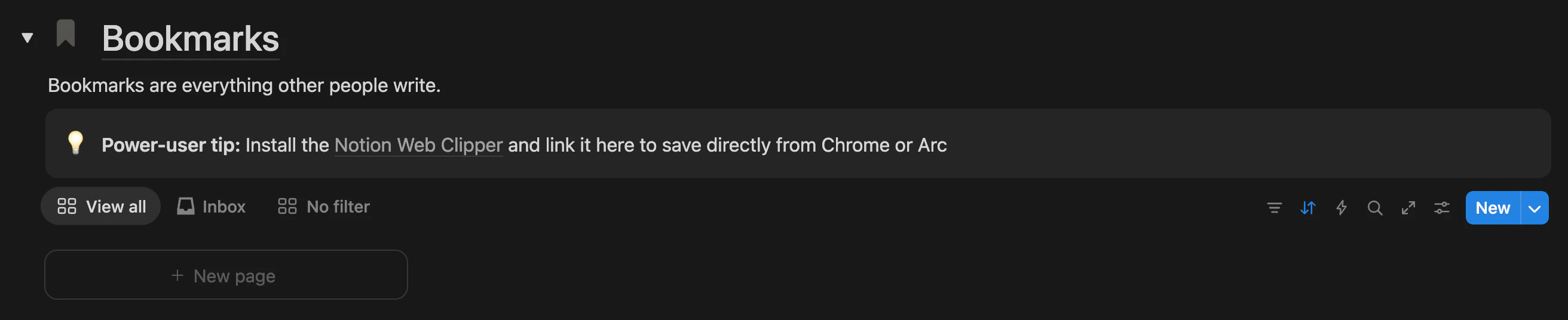
Bookmarks are for content created by others that you want to save for future reference. Web articles, quotes from books, anything you didn’t write yourself.
“Bookmarks are things that others wrote — website content you captured to remember a tool you discovered, a quote from a book, anything that someone else wrote.”
For example, save an article like “Drills, needles, and pain, oh my!” to Bookmarks and link it to your “Personal” Area.
Install the Notion Web Clipper to capture web pages directly from Chrome on desktop, and use the Notion mobile extension on the go.
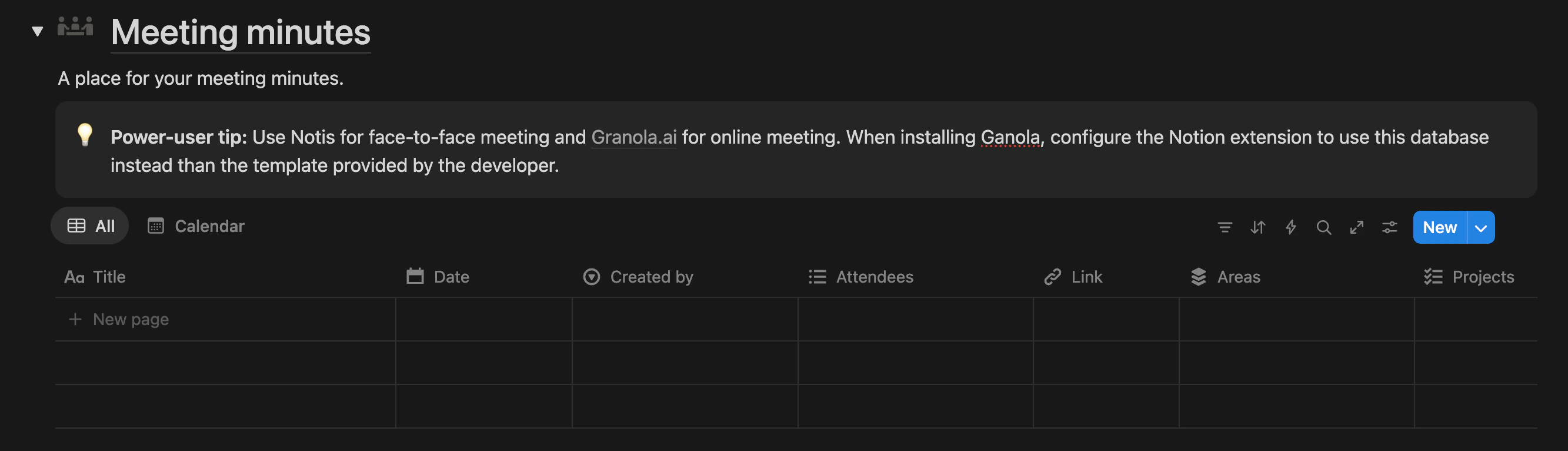
Meeting Minutes stores notes and summaries from your meetings — discussions, decisions, action items.
“One of my favorite use cases is to ask Notis right after a Granola-transcribed call to send me a follow-up email draft based on the meeting and add my action items to my Tasks database.”
For example, an entry titled “Notis Orientation between Florian Pariset and Chaimaa” with attendees, key discussion points, and next steps.
Use voice notes for in-person meetings (Notis transcribes them) and Granola for online meetings. Configure Granola’s Notion extension to use this database so every transcript ends up in the same place.
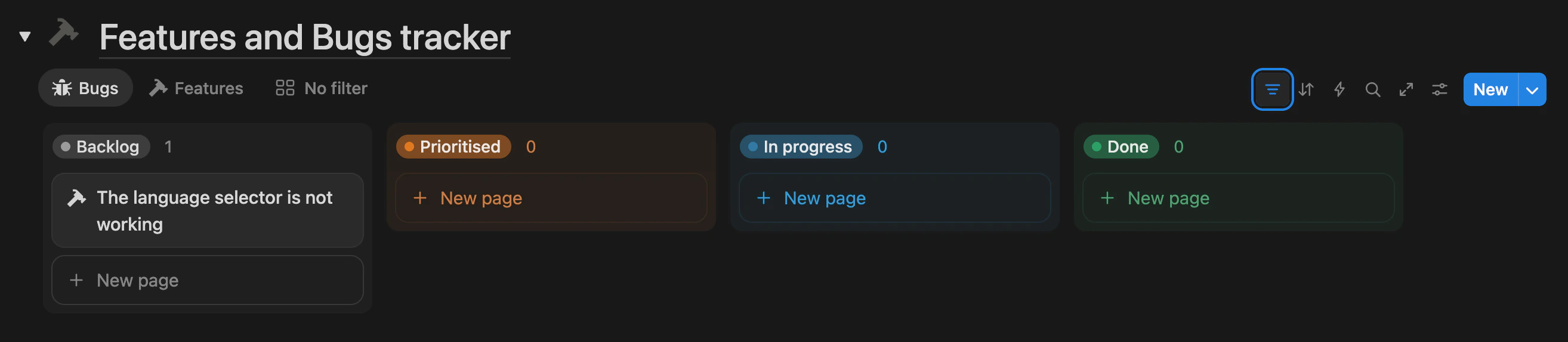
Features & Bugs is designed for product managers and developers tracking feature requests and bug reports.
“I used to dread reporting bugs — Notis has made it, by far, the path of least resistance to write precise bug reports.”
For example, an entry tracking a new feature idea or a bug you’ve discovered.
Add your bug-report standard format to the database description (see Database and property instructions). You can push further by syncing GitHub issues into this database so your team stays in sync.
Contacts & CRM helps you manage your sales process or just keep enough context on the people in your life that Notis can help. Particularly powerful when you connect entries to Meeting Minutes, Notes & Documents, and Tasks.
“Having my contacts in my second brain lets me ask Notis what my next follow-up is with a lead, and ask questions about previous meetings. It’s a consolidated context across my whole second brain.”
For example, store contact info, interaction history, and follow-up notes for clients, colleagues, or friends.
Snap a photo of a business card and send it to Notis — it extracts every relevant field and saves a new contact automatically.