

What onboarding covers
Your basics
Confirm your language, name, role, time zone, and where you heard about Notis.
Your apps
Connect the tools Notis should work with, based on the use cases you selected at signup.
Your first win
Try a reminder, note, task, post, meeting, CRM update, bug report, or expense capture.
Start the conversation
- Visit notis.ai and click Start for free
- Enter your email address and phone number
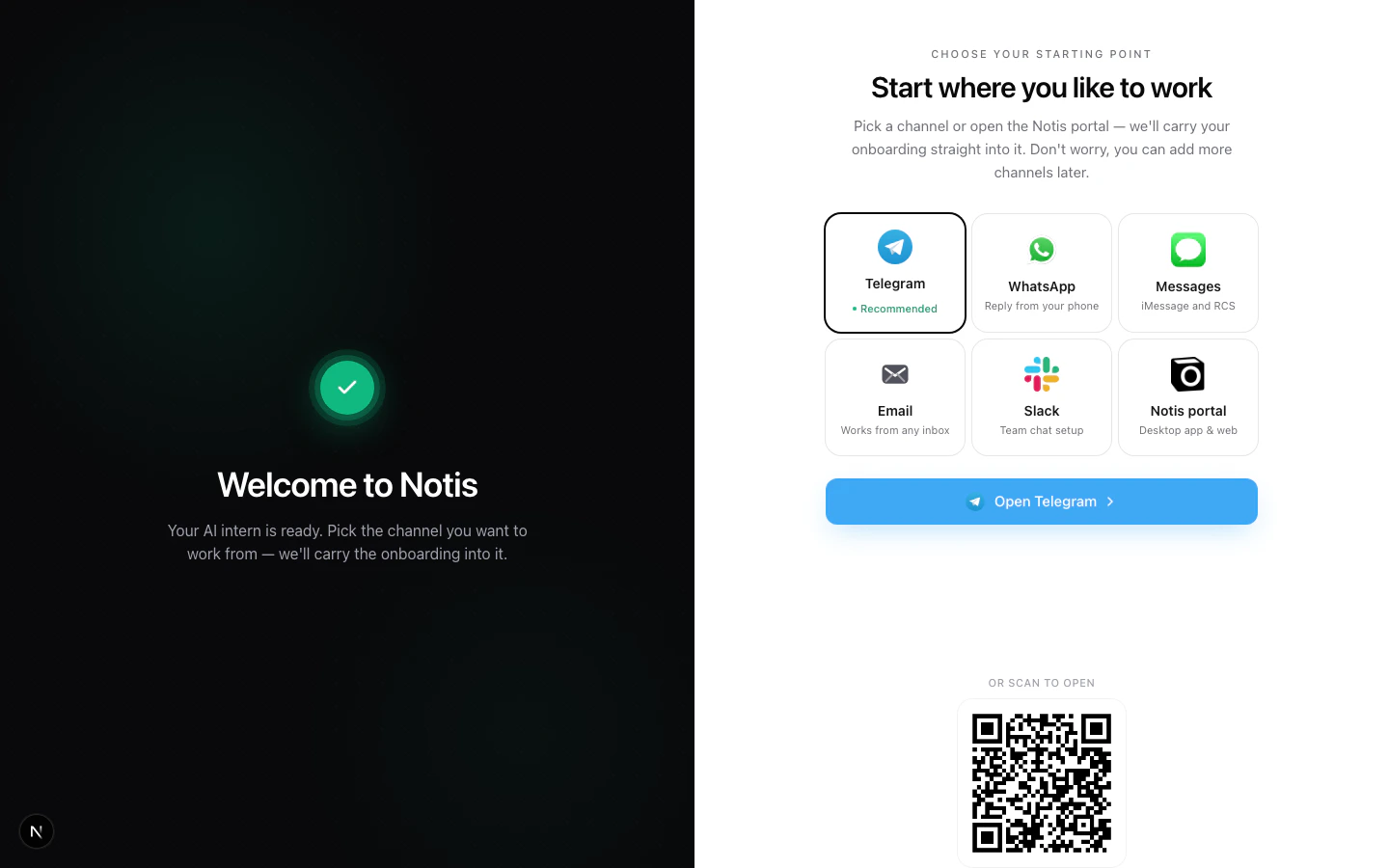
- Pick a channel: we recommend Telegram on mobile and the Notis portal on desktop
- Press Start in the chat and validate your phone number
- Tell Notis you are ready to get started
Step 1: Set your preferences
Notis starts with the basics it needs to personalize replies and schedule work correctly:- Language - Notis suggests a likely language and asks you to confirm or choose another one.
- Name - Notis confirms what to call you.
- Role - Notis asks what you do so examples and suggestions match your work.
- Attribution - Notis asks where you heard about it.
- Time zone - Notis confirms the time zone it should use for reminders, meetings, and schedules.
Step 2: Connect your apps
Notis then asks what apps you already use for the goals you selected at signup. The exact apps depend on your use case:
When an app needs authentication, Notis sends a secure connection link and waits while you finish the external flow. If you have trouble, Notis can also send a signed portal link to manage integrations directly.
Connecting Notion
Notion has a special onboarding path because you can either start fresh or connect your existing workspace:- Use the Notis Second Brain template - easiest path if you want a clean structure with good defaults.
- Use your own Notion system - best if you already have databases and pages you want Notis to use.
Step 3: Finish and try the first task
Once your basics are saved and your key apps are connected, Notis finishes the formal onboarding flow and unlocks the full assistant experience. The last step is to send a real request based on what you set up. Try one of these:“Remind me today at 5 PM to send the proposal.”
“Turn this voice note into a task list in Todoist.”
“Draft a LinkedIn post from this idea.”
“Schedule a meeting with Sarah next week about the Q2 launch.”
“Log this customer call in HubSpot.”
What’s next
- Create an automation - let Notis run on a schedule, webhook, or trigger
- Create a skill - teach Notis your voice, formats, and workflows
- Channels reference - compare where you can talk to Notis