

Trigger types
Notis supports five trigger types. You can switch between them in the Trigger dropdown of the automation editor without losing your prompt.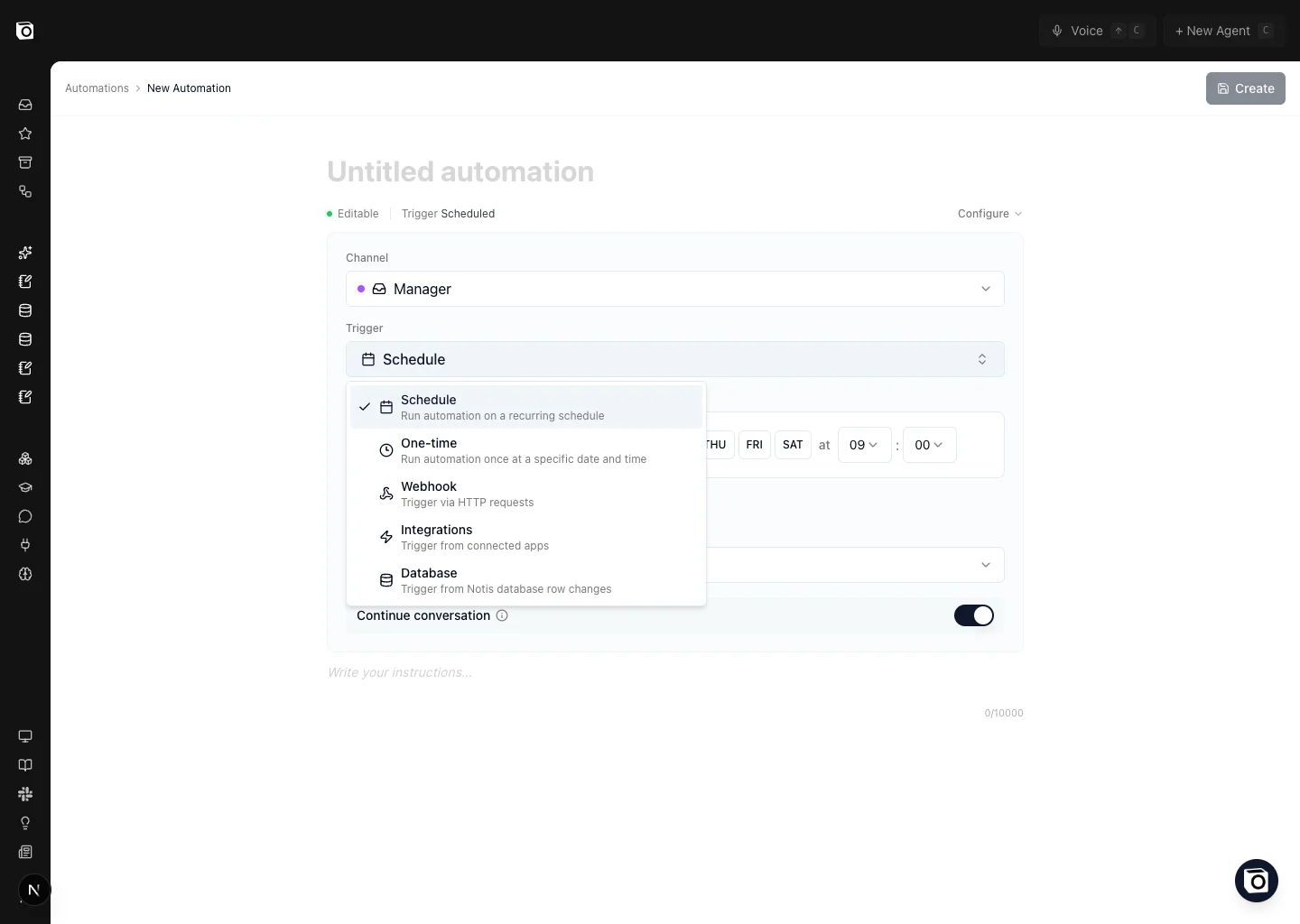
Schedule
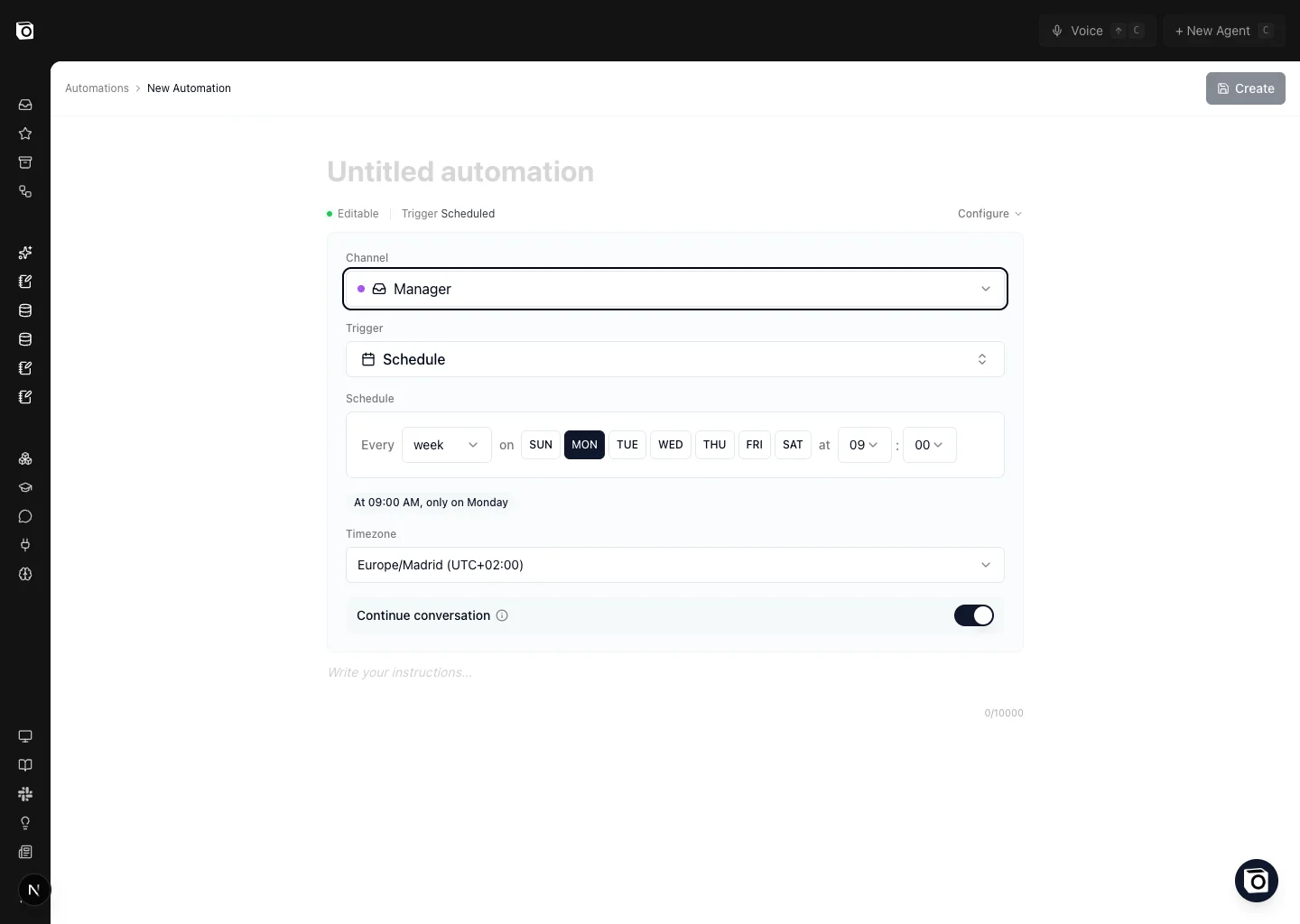
Run the automation on a recurring cadence — every weekday at 9 AM, every Monday morning, the first day of the month, and so on. The portal exposes a visual builder so you don’t need to learn cron syntax.“Every Friday at 5pm, send me a summary of the tasks I completed this week.”
“On the first of every month, generate the monthly newsletter draft from this month’s blog posts.”
One-time
Run the automation once, at a specific date and time, then disable itself. Useful for reminders and one-off launches.“On December 13th at 9 AM, send me a final reminder to publish the workshop recap.”Recurring reminders are a special case — see Reminders for the chat-first way to manage them.
Webhook
Generate a unique HTTPS URL. Anything that can hit a URL fires the automation: Zapier, Make, n8n, Pipedream, your own backend, a Notion automation, acurl from a script. Webhooks are also how you let Notion databases trigger Notis — see Trigger Notis from Notion.
The URL is generated after you save the automation, and a POST request body is forwarded to Notis as additional context alongside your prompt.
“Create a webhook automation that drafts a follow-up email when my CRM marks a deal as ‘Closed Won’.”
Integrations
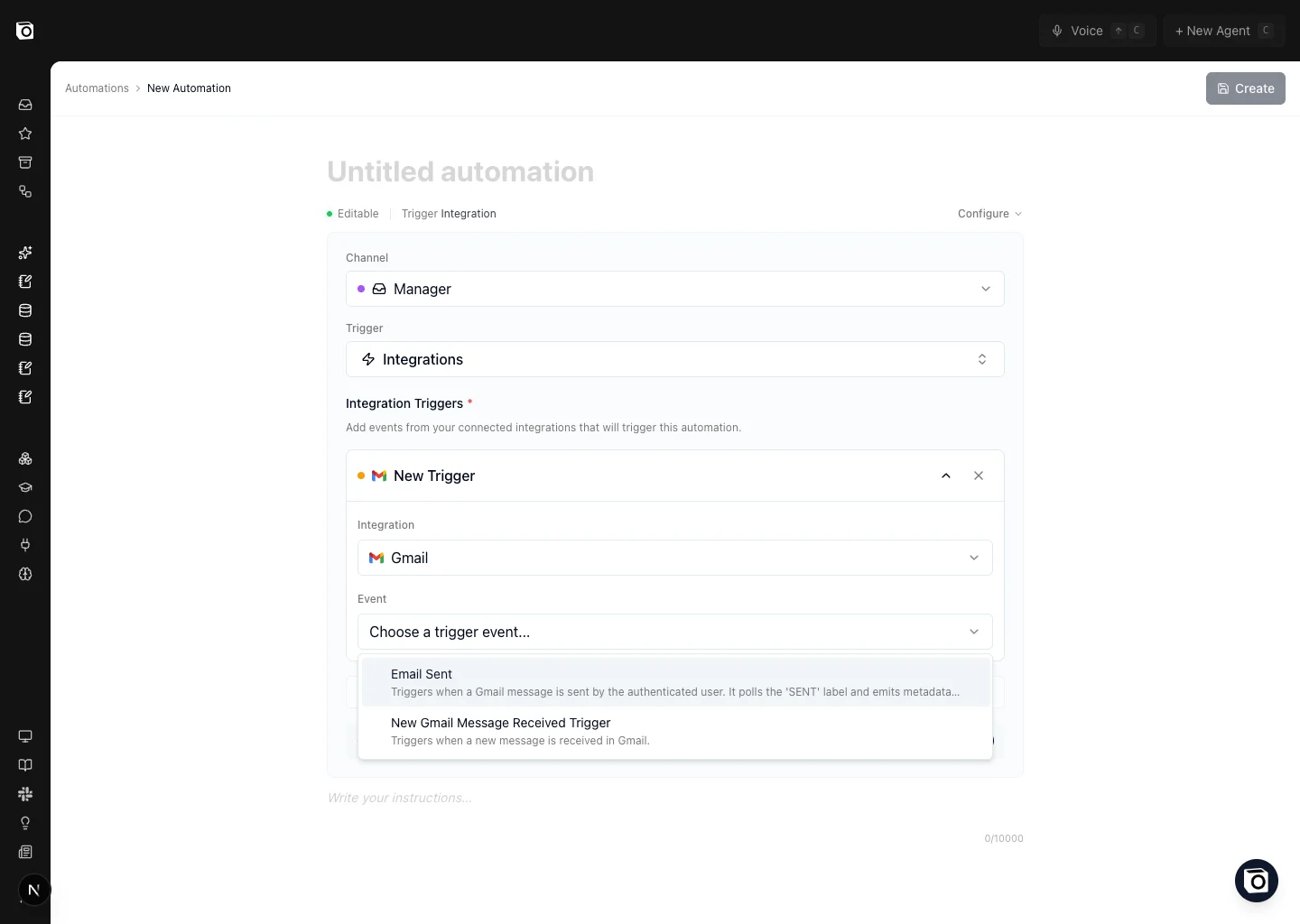
Run the automation when something happens in a connected app — a new Gmail message, a calendar event starting soon, a new HubSpot contact, a GitHub issue assigned to you. Notis subscribes to the integration’s event stream and fires the automation when the event matches.“30 minutes before any calendar event, send me a meeting prep brief.”
“When a new email arrives in my work Gmail with subject ‘Invoice’, save it to the Expenses database.”You can stack multiple integration triggers on a single automation — useful when the same instruction should run for several events. Connected social accounts powered by PostForMe appear in this same picker. Choose the account first, then run your automation when a post is created, updated, deleted, finishes publishing, or when that account changes. You can mix social events with events from your other connected apps in one automation. If the app connection behind a trigger stops working (its access expired, or you removed it), the automation shows Not running in your automations list, and the editor explains why at the top. Reconnect the app on the Integrations page: the automation switches to the new connection on its own. If it still says Not running, open it and click Resume or Save.
Database
Run the automation when a row in one of your Notis databases changes — created, updated, or both, with optional filters on specific properties. Different from a Notion-side webhook: this is the trigger you use for native Notis databases.“When a new task is added to the ‘Inbox’ Notis database, triage it and assign a priority.”
Channels and channel accounts
Every automation runs on a channel — Notis needs to know where to talk to you when the trigger fires. The channel selector covers all the supported messaging surfaces:
For channels other than the Desktop and Web app, Notis also asks for a Channel Account:
- If you only have one account connected for that channel, Notis selects it automatically.
- If you have several (e.g. a personal and a work Gmail, or two Slack workspaces), you pick which one in the Channel Account dropdown.
- If no account is connected for the chosen channel, the editor surfaces a warning and points you to Integrations to add one.
Continue conversation
The Continue conversation toggle behaves differently depending on whether the channel supports threads. Threaded channels (Desktop/Web app, Slack) — each automation run can live in its own thread, so the toggle is meaningful:- On — every run resumes the previous run’s thread, so Notis remembers what was said before. Best for daily standups, ongoing projects, anything where context compounds.
- Off — every run opens a brand-new thread. Best for one-shot drafts and fan-out work where prior runs would just add noise.
Agents
If agent routing is available for your account, the automation editor has an Agents selection with Notis, Codex and Claude. New automations start with all three on. Notis only uses the agents you leave on for that automation. If it needs one you turned off, it asks you first, and your yes covers that run only. An automation made from a team template follows the template’s selection. See Choose agents for channels and automations.Intelligence
The Intelligence selector sets how much reasoning the agents doing the automation’s work use. Leave it on Auto unless a specific automation needs a fixed level: for example High for a complex research brief, or Low for a simple daily ping you run often and want to keep cheap. See intelligence levels for the model and cost behind each level. You can also set it from chat:“Set my competitor analysis automation to High intelligence.”
“Put my daily standup automation back on Auto intelligence.”
Manage automations from any channel
Once an automation exists, every action lives behind a chat command — no need to open the portal:“List all my automations.”
“Edit my Meeting Prep automation to run 15 minutes before instead of 30.”
“Run my competitor analysis automation on poke.com.”
“Disable my weekly summary automation.”
“Delete the social media posting automation.”
“What was the status of the last automations that ran?”The same goes for creating new ones — Notis can build a webhook or schedule automation directly from a chat brief.
“Create a webhook automation that drafts a social media post for today based on the blog post I share.”
Manage automations in the portal
app.notis.ai/automations is the visual control plane. You’ll find it in the left sidebar under Customize → Automations.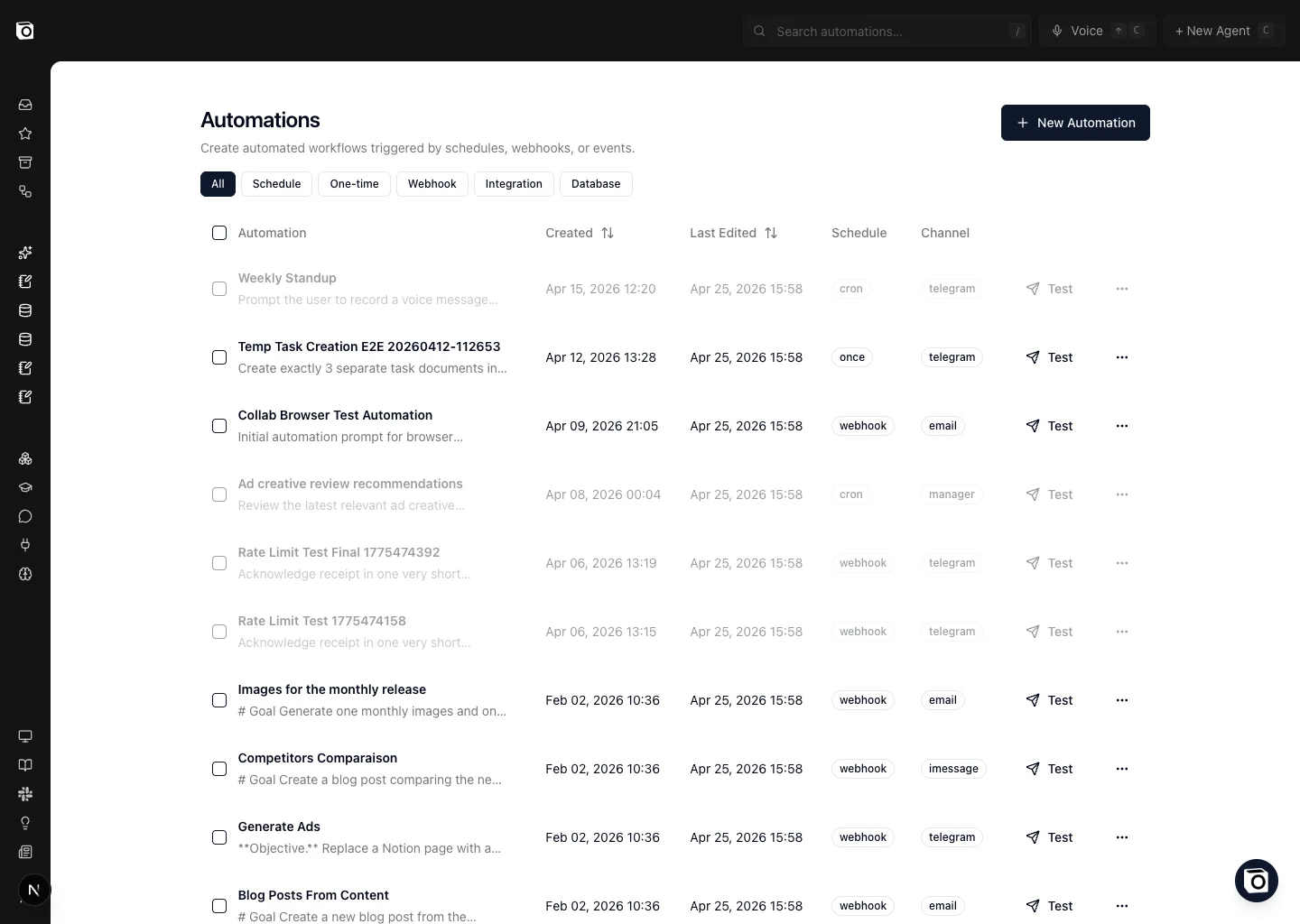
- Filter by trigger type (Schedule, Webhook, Integration, Database)
- Open the One-time tab to see your one-time automations on their own: what’s coming up, day by day, and what already ran, month by month
- Search by name or prompt
- Test, pause/resume, duplicate, or delete an automation in one click
- Open execution logs to see when each run fired and what happened
- Publish an automation as a team template so teammates can reuse it
- Share an eligible automation with anyone through a link
Share an automation with a link
Open a saved automation’s ⋯ menu and choose Share via link. The recipient can read the prompt, trigger, schedule, and delivery channel before signing in and installing their own copy. Notis never shares your connected account. The recipient chooses or connects their own account after installation. Ask them to review the new automation in the editor, especially its schedule, channel, and integration connection. Share links are available for active recurring schedules, webhooks, and supported integration automations. One-time, paused, and database-triggered automations cannot be shared because their timing or database belongs to the original workspace. The link keeps a snapshot of the automation at the moment it was created. Revoke it and create a new link when you want to distribute an updated version. Revocation stops future installs but does not delete copies that were already installed. For ongoing team-wide updates, use a team template instead. A share link gives each recipient an independent copy. For webhook automations, the URL is generated after the first save and surfaced inline with a copy button: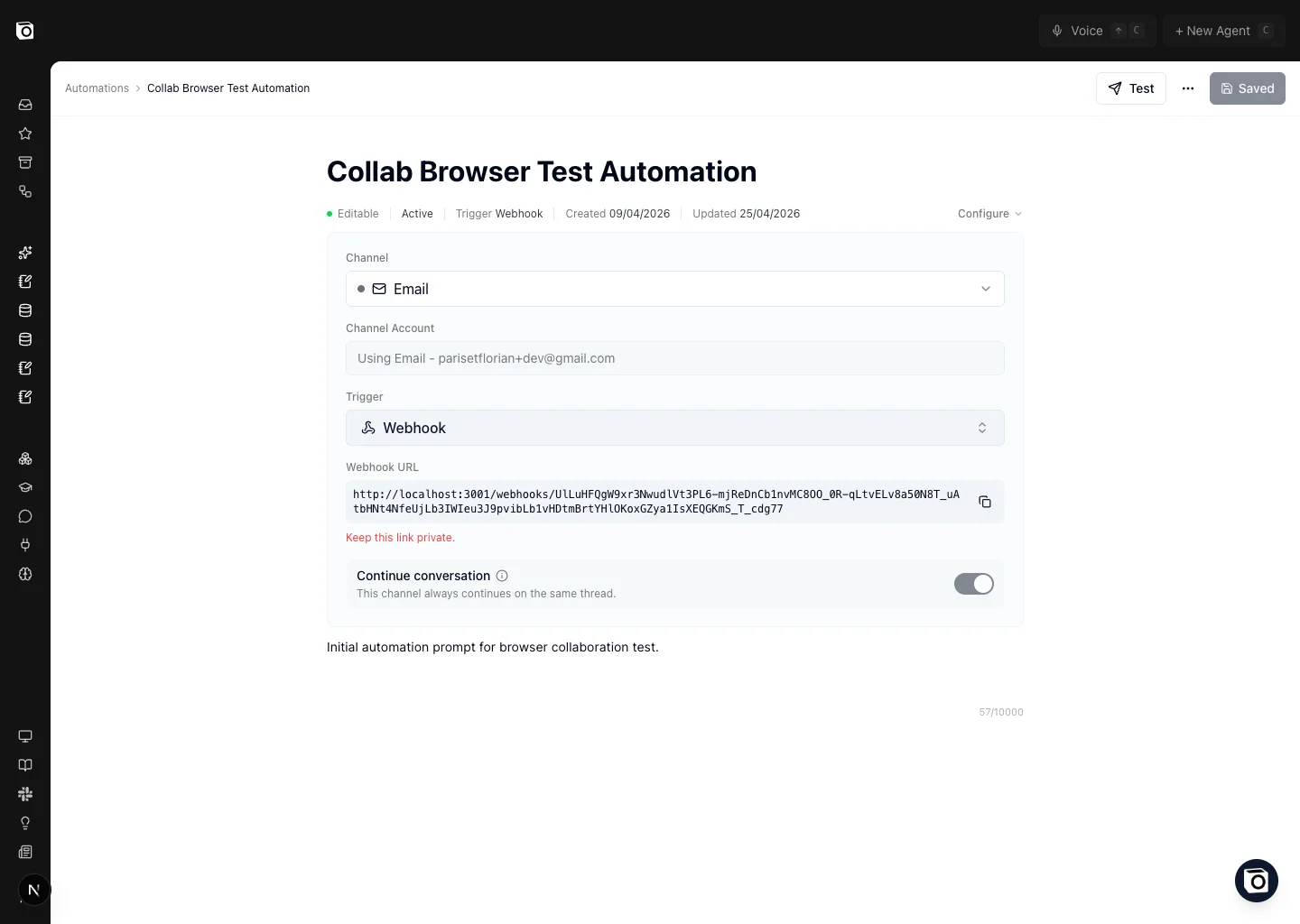
Browse the prompt library for ready-to-copy automations — daily briefs, weekly summaries, social media schedulers, expense triage, meeting prep, and more.
Limits
Notis enforces per-automation rate limits to keep the system fair and stable:- Webhooks — 50 requests per day per webhook
- Integration triggers — 50 events per day per trigger
What’s next
- Create your first automation — guided walkthrough with a real example
- Trigger Notis from Notion — the canonical Notion-side webhook setup
- Turn any database into an AI agent — pair automations with Notion database instructions
- Reminders — the chat-first wrapper around one-time and recurring scheduled automations