

Where to use it
The Desktop and Web App is one channel with three surfaces. They share the same threads, the same authentication, and the same agent context — pick whichever fits the moment.Web portal
Open Notis in any browser at app.notis.ai/manage. Best for review, multi-select cleanup, and working with attachments.
Desktop app
Native macOS and Windows builds. Same UI, plus the desktop overlay and the contextual pill that surfaces what’s on screen into the chat. Auto-updates from the beta or stable channel.
Desktop overlay
A floating chat card you summon over any other app with a global hotkey. Pointer events pass through everywhere except the card itself.
Desktop app
The desktop app wraps the same portal you’d use in the browser, plus a few capabilities that only make sense locally:- Desktop overlay — a floating Notis chat over any application without leaving what you’re doing.
- Contextual pill — every page you open in the app injects a contextual pill into the chat composer with the current app, view, database, document, automation, or skill. Notis stays aware of what you’re working on without you having to mention it.
Desktop overlay
The overlay is a full-screen transparent window with a single floating card in the middle. The card is the only interactive part — every pixel around it remains click-through, so the app behind it stays usable. Default global hotkeys (configurable in Settings → Shortcuts):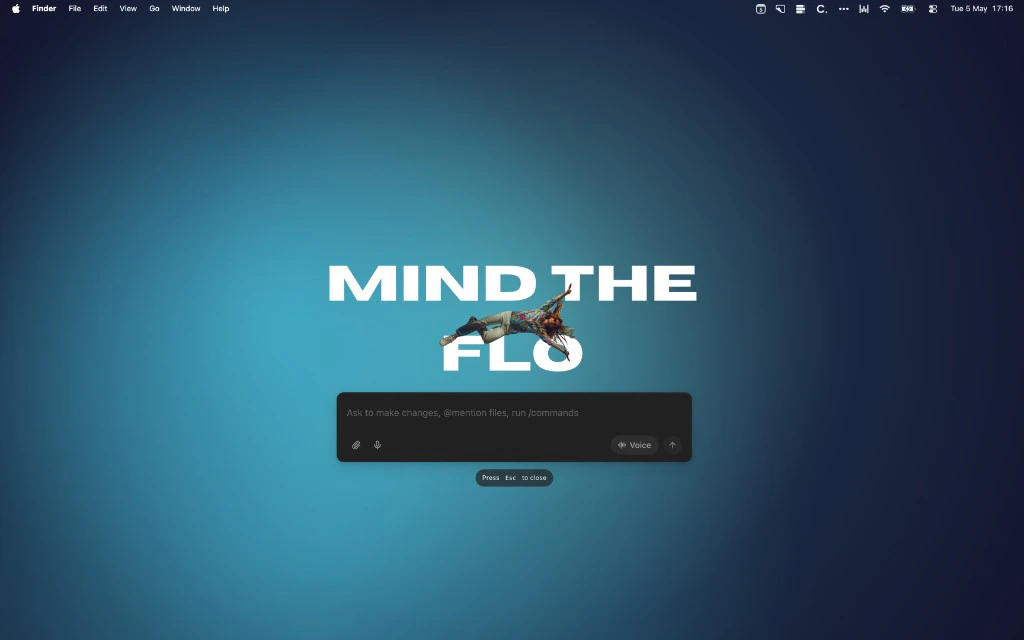
Modes
Both the inline portal chat and the desktop overlay support two modes. You can swap between them at any time without losing context.Chat mode
Text-first input with attachments (images, PDFs, audio),
@-mentions to attach context, /-commands to give instructions, and quick voice notes. The default mode in the portal and overlay.Voice mode
Real-time voice session powered by ElevenLabs. Talk to Notis hands-free; Notis speaks back. Ideal for cooking, driving, walking, and capturing brain dumps. See Voice Mode for the full reference.
Intelligence and priority
The chat composer carries two small pickers next to the input — Intelligence and Priority. They let you override how Notis runs for the conversation you’re in, on top of the channel’s default intelligence & priority.Intelligence
Pick how capable a model Notis uses:- Auto (recommended) — Notis picks the intelligence level per turn.
- Low, Medium, High — pin a fixed level. See the levels and rates.
Priority
Pick how quickly Notis is served, independent of intelligence: Standard (default), Fast, or Economy. See processing tiers for what each tier does.How overrides combine
A pick here is a per-conversation override that layers on top of the channel default:- Leave a picker untouched and the conversation inherits the channel default — which can itself be Auto.
- Set it, and just this conversation uses your choice. Other threads and channels are unaffected.
Keyboard
Rendering support
The Desktop and Web App renders Notis-native markdown in the conversation body, including named links, inline images, and markdown tables. Uploaded or generated files can still appear as separate attachments when Notis sends them through the thread media carousel.Inboxes
The left rail has four built-in views. Each view runs the same channel and source filters across the same underlying threads.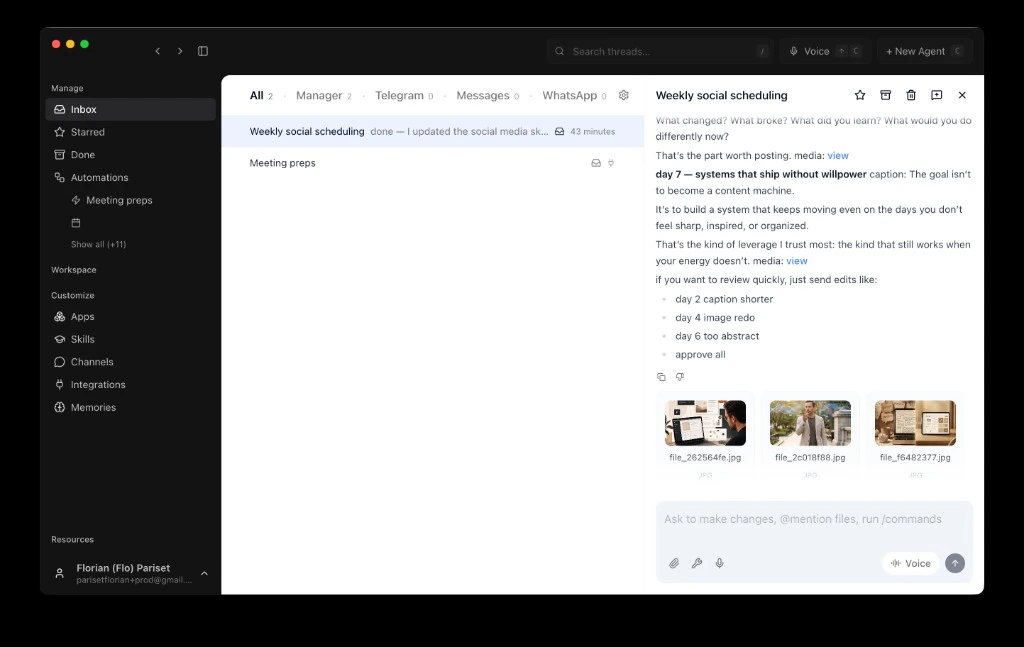
Filters
Every view supports the same filter primitives. They stack — set them all at once to narrow down to exactly the conversation you’re looking for.Channel tabs
Channel tabs sit across the top of the inbox and let you scope the list to a single channel: All channels, Desktop and Web app, Telegram, WhatsApp, iMessage, Slack, or Email. Useful when you want to see only the conversations that started in a particular place.Source filter
The source dropdown in the top bar narrows further within the selected channel. Sources include things like a specific automation, a specific Slack workspace, or a specific email address. Set to All by default.Search
The top-bar search box runs a full-text search across thread titles and recent message content. It updates as you type and respects the active channel and source filters.Keyboard shortcuts
The portal is built to be driven from the keyboard, the same way you’d work an email client. Press? from anywhere to see the full list.
Tool catalog and command search
The portal search bar can surface more than threads. Use it to browse the tools available to Notis, grouped by category and source:- Built-in Notis tools
- Connected integration tools
- Custom MCP tools
- Installed skills
- Apps, views, databases, documents, and automations
@ to attach an item as context (an app, view, database, document, page) and / to give Notis an instruction (a skill, automation, or built-in command). The two are not interchangeable: @docs/spec adds the doc to the conversation; /summarize tells Notis what to do with it.
Working a thread
Once you open a thread, every action you’d want lives in the chat panel:- Reply from the portal — type or use voice. If the thread originated on Telegram, WhatsApp, iMessage, Slack, or Email, your reply routes back through the original channel automatically — the other person never sees it as portal-originated.
- Star — pin the thread to the Starred view.
- Archive — mark the thread Done. It returns to the Inbox if a new message arrives.
- Multi-select —
shift-click or drag-select rows in the inbox, then bulk-archive or bulk-star from the action bar. - Agent timeline — every Notis interaction expands to show the tool calls Notis made, the files it touched, and the response — useful for debugging and auditing.
@for context,/for instructions —@pulls an app, view, database, or document into the conversation as context./invokes a skill, automation, or built-in command as an instruction. Mix them freely:@db/leads /summarize.
Pairs with
- Channels compared — see how the Desktop and Web App differs from Telegram, WhatsApp, iMessage, Slack, and Email.
- Voice Mode — full reference for the real-time voice channel used inside the portal and overlay.
- Automations — every scheduled and webhook run lands in its automation view.